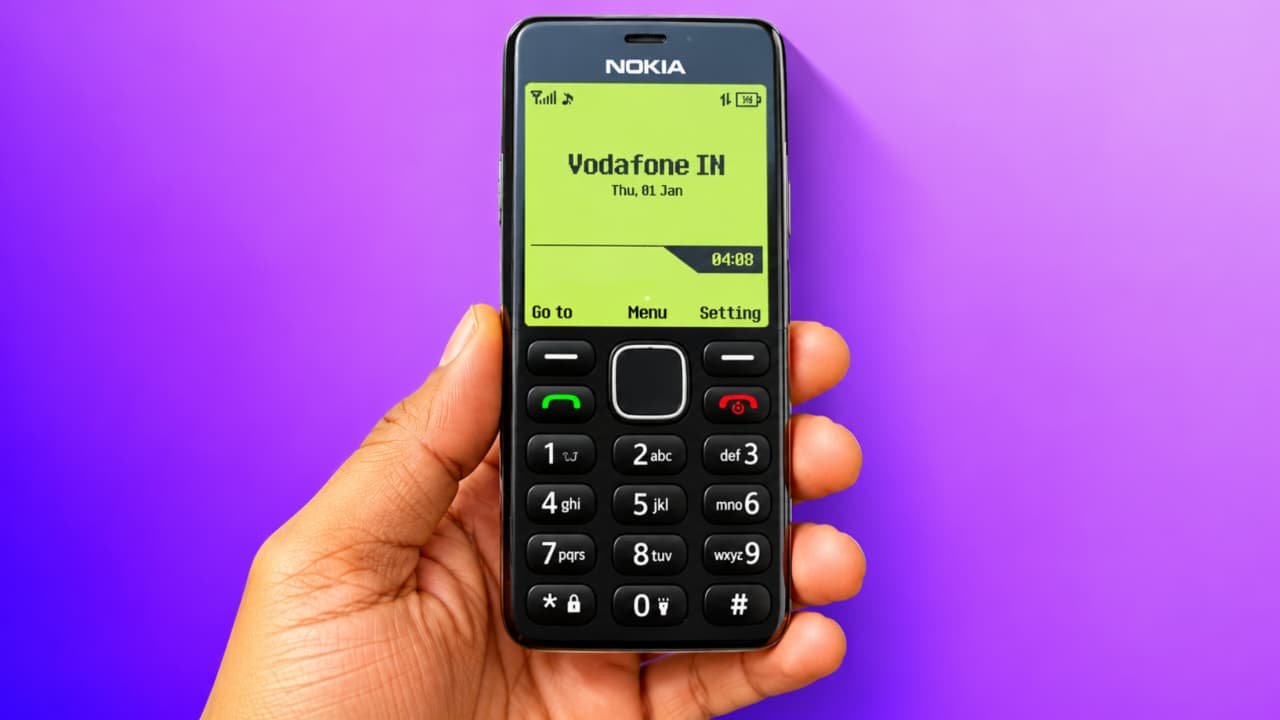
Nokia 1280 Launcher How to use
Do you remember the classic Nokia 1280 mobile phone? Nokia 1280 was one of the most popular keypad phones because of its simple design, classic ringtone, small display, and easy-to-use interface. If you miss the old Nokia phone experience, you can now enjoy a similar classic look on your Android smartphone using a Nokia 1280 Launcher.In this article, we will explain Nokia 1280 Launcher How to Use, how to install it, how to customize your home screen, and how to make your Android phone look like an old Nokia keypad mobile.
What Is Nokia 1280 Launcher?
Nokia 1280 Launcher is an Android customization app designed to give your smartphone a classic Nokia-style appearance. It can recreate the old keypad phone interface with a simple home screen, traditional icons, and retro-style design.If you love vintage mobile phones, this launcher can make your modern Android smartphone look similar to an old Nokia device.However, remember that a launcher mainly changes the appearance of your phone. It does not convert your Android smartphone into an actual Nokia 1280 or provide the original Nokia operating system.
How to Download Nokia 1280 Launcher
First, you need to download a compatible Nokia-style launcher application on your Android phone.
Follow these steps:
- Open the Google Play Store on your smartphone.
- Search for Nokia 1280 Launcher or Nokia Classic Launcher.
- Check the app description, screenshots, ratings, and developer information.
- Choose a trustworthy application compatible with your Android version.
- Tap the Install button.
- Wait until the application is downloaded and installed.
- Open the application.
Always check the developer and app permissions before installing any launcher. Avoid downloading unknown APK files from untrusted websites.
How to Use Nokia 1280 Launcher
After installing the application, you can start customizing your smartphone with a classic Nokia-style interface.
Step 1: Open the Launcher App
First, open the Nokia 1280 Launcher application from your app drawer. You may see an introduction screen explaining the available features.
Step 2: Set the Launcher as Default
Some launcher applications ask you to select a default home app.Go to your phone’s Settings, open Apps, select Default Apps, and tap the Home App option. Choose the newly installed launcher if it is available.The exact settings may differ depending on your Android smartphone.
Step 3: Customize the Home Screen
Once the launcher is active, explore its customization options. Depending on the application, you may be able to change the wallpaper, icons, layout, and other visual settings.Select a classic Nokia-style wallpaper to create a more nostalgic appearance.
Step 4: Customize the App Icons
Some Nokia-style launchers offer retro-looking application icons. You can use these icons to give your home screen a traditional keypad-phone appearance.
Step 5: Explore the Launcher Settings
Open the launcher settings and check the available options. You may find settings for themes, fonts, wallpapers, and home screen layouts.Choose the appearance you like and save your changes.
Features of Nokia 1280 Launcher
Here are some features you may find in a Nokia-style launcher:
1. Classic Nokia Design
Enjoy a retro mobile interface inspired by traditional Nokia keypad phones.
2. Simple Home Screen
A clean and simple home screen can make your Android smartphone look different from its original design.
3. Retro Wallpaper
Some applications provide classic-style wallpapers to recreate the appearance of old mobile phones.
4. Custom App Icons
Change supported application icons to create a vintage mobile experience.
5. Easy Customization
Depending on the launcher, you can customize different visual elements according to your preferences.
How to Remove Nokia 1280 Launcher
If you want to return to your original Android home screen, you can easily switch back.
- Open your phone’s Settings.
- Go to Apps or Default Apps.
- Select the Home App option.
- Choose your original system launcher.
- Your phone will return to its previous home screen.
You can also uninstall the launcher from Settings > Apps if you no longer need it.
Is Nokia 1280 Launcher Safe?
Before installing any third-party launcher, check its permissions, developer details, reviews, and privacy information. A simple launcher generally does not need access to unrelated personal information.Avoid granting unnecessary permissions, especially access to contacts, messages, microphone, or location when these are not required for its advertised features.Also, remember that third-party launchers may not support every Android device or feature.