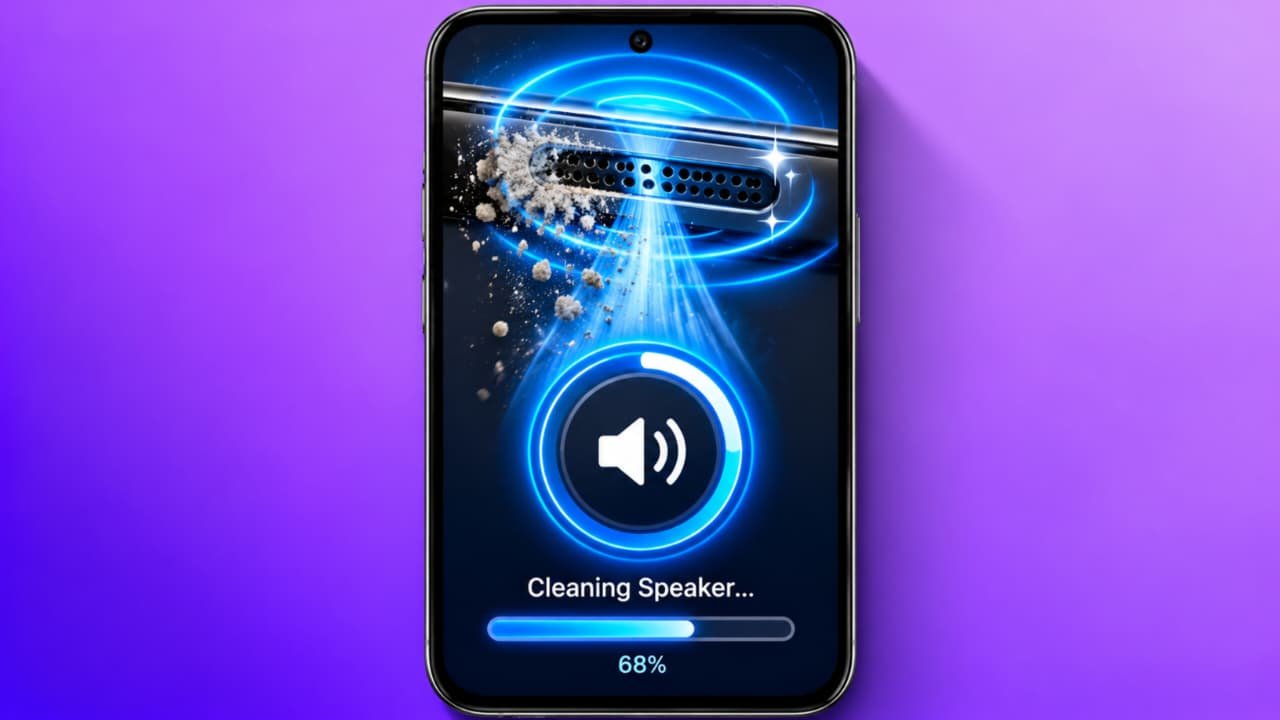
Call Speaker Cleaner
Eject water and dust from your phone’s speaker using sound frequencies.
How to Increase Volume If Your Phone Speaker Is Low – Android Sound Problem Fix
Is your mobile phone speaker producing low sound even when the volume is set to maximum? Are you unable to hear music, videos, ringtones, or calls clearly? If you are facing this problem, there are several settings you can check to improve your phone’s sound.In this article, we will explain how to increase phone speaker volume, fix low sound problems, adjust Android sound settings, and troubleshoot speaker issues on Samsung, Redmi, Realme, Vivo, Oppo, and other Android smartphones.
1. Increase Your Phone’s Media Volume
The first step is to check the volume settings on your mobile phone. Sometimes, ringtone volume is high while media volume remains low.
Follow these steps:
- Press the Volume Up button on your phone.
- Tap the three-dot menu or volume settings icon.
- Find the Media Volume slider.
- Move the slider to a higher level.
- Play a video or song to test the sound.
You may also see separate sliders for ringtone, notifications, alarms, and calls. Adjust the appropriate slider according to your needs.
2. Check Sound Settings on Your Android Phone
Many Android smartphones provide additional sound settings that can affect the listening experience.Open Settings and search for Sound, Sound & Vibration, or Audio Settings. Depending on your device, you may find options for sound effects, equalizers, or speaker output.If an equalizer is available, try a suitable preset and test the result with your favorite music. Avoid increasing every frequency to the maximum because it can cause distortion.Remember that menu names and available features vary between smartphone brands and Android versions.
3. Clean Your Phone Speaker Carefully
Dust, lint, and debris can collect around the speaker grille and make the sound seem quieter.
To clean the speaker safely:
- Disconnect your phone from the charger.
- Turn off the device if appropriate.
- Inspect the speaker grille under good lighting.
- Use a clean, soft, dry brush gently on the exterior.
- Avoid inserting needles, pins, or sharp objects into the speaker holes.
Do not pour water or cleaning liquid into the speaker. Avoid compressed air and other forceful cleaning methods that could damage delicate components.If the speaker remains blocked or the sound is muffled, consider professional cleaning.
4. Turn Off Bluetooth If You Are Not Using It
Sometimes, your phone may send audio to connected Bluetooth headphones, speakers, or another audio device instead of its built-in speaker.
To check this:
- Open your phone’s Settings.
- Select Bluetooth or Connected Devices.
- Check whether an audio device is connected.
- Disconnect the device if you want to use your phone speaker.
- Play a video and test the volume again.
Also check the audio output selector in your media player, if one is available.
5. Check Do Not Disturb and Volume Limits
Do Not Disturb mode mainly affects interruptions, notifications, and calls rather than always reducing media volume. However, notification settings can make your phone appear quieter.Some phones, headphones, or media applications also have volume limits or separate audio controls.Check the relevant settings and make sure the media player itself is not muted or set to a low volume.Do not disable hearing-protection features just to force sound beyond safe listening levels.
6. Use an Equalizer to Adjust Sound
An equalizer can change how different audio frequencies sound. If your phone supports an equalizer, you may find it under Sound Settings, a music app, or a supported audio accessory’s settings.Try a balanced preset first. If the audio sounds unclear, experiment with small adjustments rather than increasing all frequency levels.Keep in mind that an equalizer cannot repair a damaged speaker or guarantee louder output. Excessive boosts can create distortion and reduce sound quality.
7. Update Your Phone Software
Sometimes, audio problems may be related to software bugs or an application issue.
To check for updates:
- Open Settings.
- Find Software Update or System Update.
- Check for available updates.
- Install an official update if appropriate.
- Restart your phone and test the speaker.
You can also update your media player through the official app store. Before installing a major update, make sure your important data is backed up.
8. Restart Your Mobile Phone
A simple restart can resolve temporary software problems that affect sound playback.Press and hold the power button, select Restart, and wait for the phone to turn back on. Play a video or music file to see whether the speaker volume has improved.If the issue happens only in one application, check that application’s volume controls and settings before changing system-wide options.
9. Avoid Fake Volume Booster Apps
Some applications claim to increase phone volume beyond the normal maximum. However, they cannot make every speaker louder safely, and excessive amplification can cause distorted sound.Choose apps carefully, review their permissions, and avoid applications that request unnecessary access to your personal information.Increasing speaker output excessively may damage the speaker or affect hearing, particularly when using headphones. It is better to maintain clear, comfortable sound than to force the volume beyond its intended limits.
10. When Should You Repair Your Phone Speaker?
If the speaker sound is still low after checking the settings, the problem could be caused by hardware damage, liquid exposure, a blocked grille, or a faulty speaker component.Test different audio sources, such as a ringtone, a locally stored video, and another application. If all of them sound unusually quiet or distorted, contact an authorized service center or qualified technician.Do not open the phone yourself if you are unfamiliar with mobile repairs.