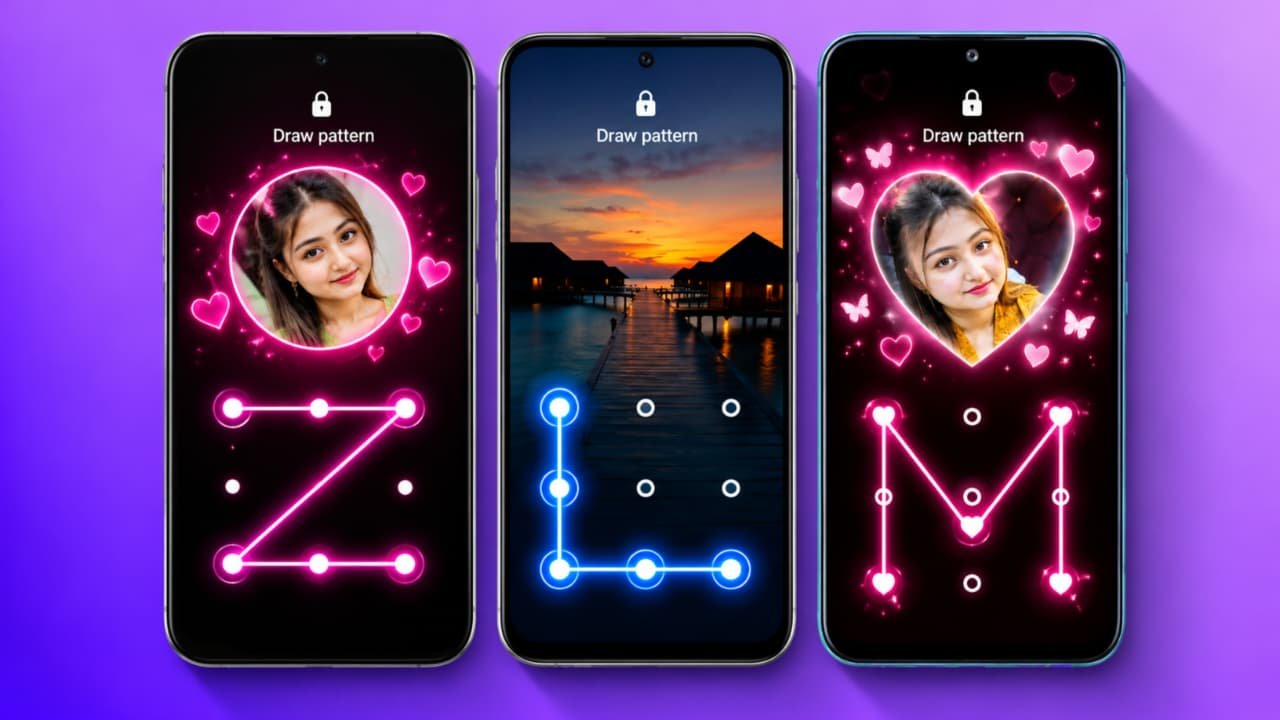
How to Generate a Pattern Lock – Create a Strong and Secure Mobile Lock
Do you want to create a strong and difficult pattern lock for your Android smartphone? A pattern lock is a popular screen-lock method that allows you to protect your phone by connecting dots in a specific sequence. If you want to improve your mobile security, choosing a unique pattern is important.In this article, we will explain how to generate a pattern lock, how to set a difficult pattern on your Android phone, and how to protect your device from unauthorized access. We will also discuss pattern lock generators and important security tips.
What Is a Pattern Lock?
A pattern lock is a screen security feature available on many Android smartphones. It generally displays a grid of nine dots arranged in three rows and three columns. You create a pattern by connecting several dots in a particular order.Whenever you unlock your phone, you must draw the same pattern again. If the pattern does not match, the phone remains locked.Pattern locks are convenient because you can unlock your phone without entering a PIN every time. However, a predictable pattern may be easier for someone to guess, so choosing a unique one is important.
How to Generate a Strong Pattern Lock
Follow these general steps to create a secure pattern for your smartphone.
Step 1: Open Your Mobile Settings
Unlock your Android phone and open the Settings application. Depending on your device, you may find the security options under Security, Privacy, Lock Screen, or Password & Security.
Step 2: Select Screen Lock
Find the option named Screen Lock, Screen Lock Type, or a similar setting. Your phone may ask you to verify your existing PIN, password, or pattern before changing the security method.
Step 3: Choose Pattern Lock
Select Pattern if your phone supports this option. Some newer Android devices or manufacturer interfaces may offer different lock-screen options.
Follow the instructions displayed on your phone to create a new pattern.
Step 4: Create a Unique Pattern
Choose a pattern that is not based on an obvious letter, simple shape, or predictable movement. Avoid using a pattern that other people have already seen you draw.
You can use a pattern-generation tool to explore different possibilities for your own device. However, treat generated patterns as suggestions rather than guaranteed security solutions.
Step 5: Confirm Your Pattern
After drawing your pattern, your phone will generally ask you to draw it again to confirm. Make sure you can reproduce it accurately before completing the setup.
Follow any additional instructions displayed on your phone to save the new screen lock.
How to Use a Pattern Lock Generator
A pattern lock generator is a tool that can help users understand the dot-grid layout and explore possible pattern designs.
A typical generator may display a three-by-three grid where users select dots to form a pattern. Depending on the tool, it may show a visual preview or demonstrate how a pattern is drawn.
To use a generator safely:
- Open a trusted pattern-design tool.
- Explore the available dot-grid interface.
- Create a pattern idea that is not based on an obvious shape.
- Memorize the pattern privately.
- Set your actual screen lock through your phone’s Settings.
Important: A website or generator does not automatically change your Android screen lock. You must set the pattern directly on your device.
Avoid entering your current phone password or existing unlock pattern into an unknown website.
Tips for Creating a More Secure Pattern Lock
Here are some useful tips for improving your phone’s security.
Avoid predictable designs: Simple letters, straight lines, and familiar shapes may be easier to guess.
Keep your pattern private: Do not let other people watch you unlock your device.
Clean your screen: Fingerprints and smudges can sometimes reveal clues about frequently used touch locations.
Use additional security: If your phone supports a strong PIN, password, or fingerprint authentication, consider using these options according to your security needs.
Enable device protection: Keep Android updated and enable the available device-finding and recovery features.
Protect your backup account: Use a strong password and two-step verification for the Google account associated with your device.
Is a Pattern Lock Completely Secure?
No screen-lock method is perfect. Pattern locks can be convenient, but someone who observes your movements may learn your pattern. Security also depends on the device, its software, and your other security settings.A longer, less predictable pattern can help, but a strong PIN or password may provide better protection in some situations. Fingerprint recognition can also make everyday unlocking more convenient when used with a secure backup method.Remember that a pattern lock protects access to your phone; it does not encrypt every individual file separately or guarantee protection against every type of attack.