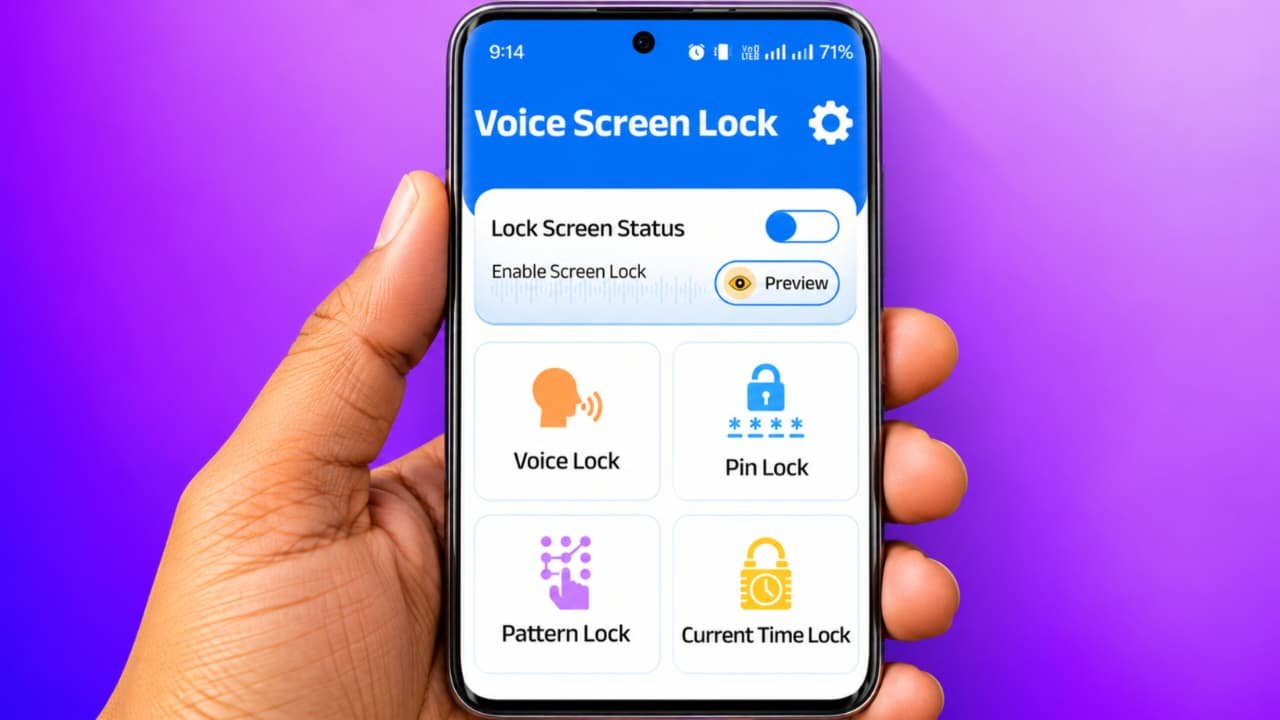
Voice Screen Lock How to use
Do you want to unlock your Android smartphone using your voice instead of a traditional PIN, pattern, or password? If yes, then Voice Screen Lock is an interesting mobile customization feature you can try. With the help of a voice lock application, you can create a voice-based unlocking experience and give your smartphone a different style.In this article, we will explain Voice Screen Lock How to Use, how to download a voice screen lock app, how to set a voice password, and how to customize your mobile lock screen.
What Is Voice Screen Lock?
Voice Screen Lock is a mobile application feature that allows users to interact with a voice-based lock interface. Depending on the application, you may be able to record or select a voice command and use it as part of the app’s unlocking process.It provides an alternative experience to traditional screen lock customization.However, not every voice lock application can replace Android’s secure system lock screen. Some apps only create a simulated voice unlocking screen. For better security, always keep your phone’s original PIN, password, or fingerprint lock enabled.
How to Download Voice Screen Lock App
First, you need to install a compatible voice screen lock application on your Android smartphone.
Follow these steps:
- Open the Google Play Store.
- Tap on the search bar.
- Type Voice Screen Lock.
- Check the available applications.
- Read the app description and reviews.
- Check the developer’s information and privacy policy.
- Select a trusted application.
- Tap the Install button.
- Wait for the installation to finish.
- Open the application.
Always download applications from trusted sources and avoid unknown APK files.
Voice Screen Lock How to Use
After installing the application, follow these steps to explore its features.
Step 1: Open the Voice Screen Lock App
First, open the installed Voice Screen Lock application from your app drawer.You will see the main screen with different options for setting up your voice lock interface.
Step 2: Explore Voice Lock Settings
Now open the settings section of the application. Depending on the app, you may find options such as voice password, voice command, lock screen settings, and customization.Select the voice lock feature you want to configure.
Step 3: Set Your Voice Command
If the application supports voice commands, follow its instructions to create a voice command.Choose a simple command that you can remember easily. Check whether the application supports voice recognition or simply uses a voice recording as part of its interface.
Step 4: Check Microphone Permission
Some applications require microphone permission to recognize voice commands.Before allowing access, check the application’s privacy policy and understand how it processes voice recordings. Grant microphone access only when necessary.
Step 5: Customize Your Lock Screen
Some voice screen lock applications provide additional customization features.You may be able to change the lock screen wallpaper, background, clock style, and other visual settings.Choose your preferred design and save the settings.
Step 6: Test the Application
After completing the setup, test the application’s voice feature according to its instructions.Remember that a third-party app may display a voice lock interface without actually replacing Android’s secure lock screen.
Features of Voice Screen Lock App
Here are some features that may be available in different voice lock applications.
1. Voice Command Feature
Some applications allow users to interact with the lock interface using voice commands.
2. Attractive Lock Screen
Customize your phone’s lock screen with different wallpapers and visual designs.
3. Easy Interface
Many voice lock applications provide a simple interface that is easy to understand.
4. Lock Screen Customization
Depending on the app, you may find different clock styles, backgrounds, and themes.
5. Voice Recognition
Some applications offer voice recognition features, although their accuracy and security can vary.
6. Additional Security Options
You can keep your Android phone’s original PIN, password, or fingerprint security enabled alongside customization features.
How to Disable Voice Screen Lock
If you no longer want to use the application, you can disable it.
- Open the Voice Screen Lock application.
- Go to its settings.
- Look for the Disable or Turn Off option.
- Follow the instructions.
- Return to your phone’s original lock screen.
If the app has accessibility or device administrator permissions, review its settings and revoke permissions before uninstalling it.
Is Voice Screen Lock Safe?
Before using any third-party voice lock application, check its permissions and privacy policy.Voice recordings can contain personal information, so avoid using unknown applications that request unnecessary access.Also, voice recognition is not as reliable as a strong PIN or password for protecting sensitive information. Voice can sometimes be affected by background noise, recording quality, or similar-sounding voices.For better protection, use Android’s built-in screen lock, fingerprint, or another supported secure authentication method.