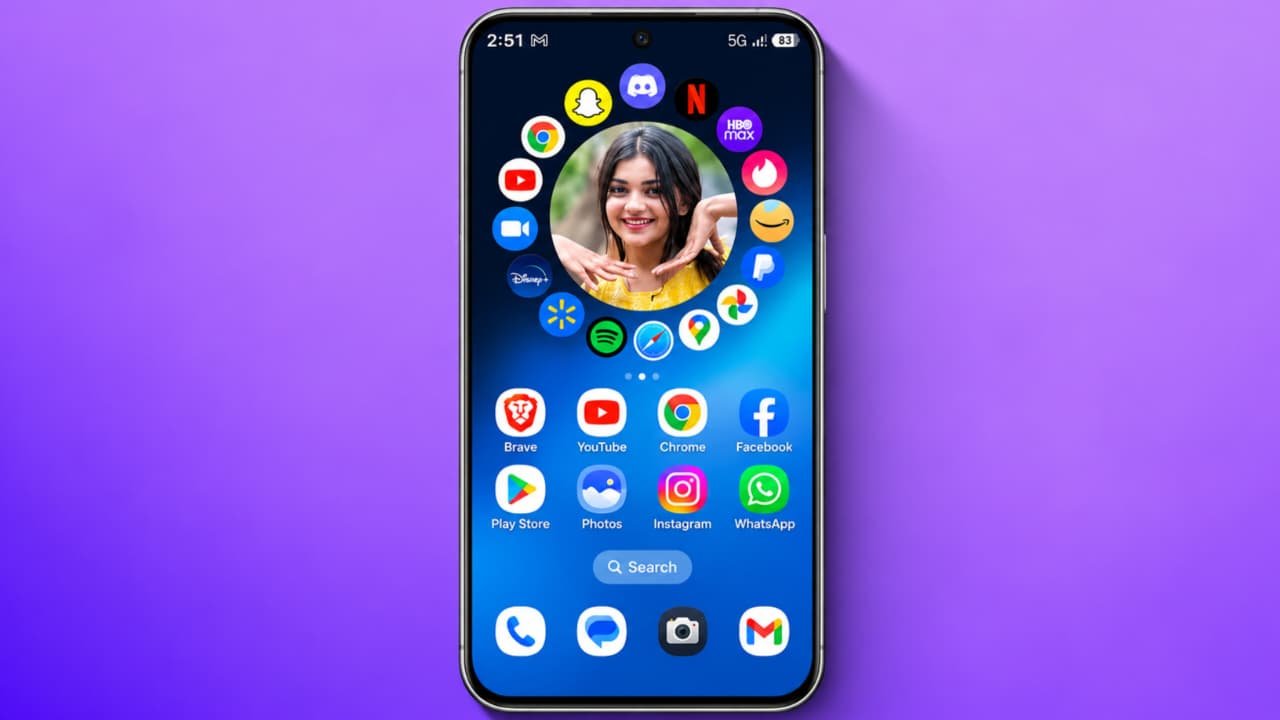
Mico – Widget & Live Wallpaper App & How to use it
Do you want to make your Android mico smartphone look more stylish, attractive, and unique? Do you want to add beautiful widgets, animated wallpapers, custom icons, and creative themes to your mobile home screen? If yes, Mico – Widget & Live Wallpaper is an interesting personalization application you can try.Mico is an application that helps you customize your smartphone’s home screen and lock screen with different designs, widgets, wallpapers, and themes. You can also create personalized widgets using your own photos and explore different wallpaper collections.In this article, we will explain what Mico Widget & Live Wallpaper is, its best features, how to download it, and how to use it step by step.
What Is Mico – Widget & Live Wallpaper App?
Mico – Widget & Live Wallpaper is a mobile personalization application developed by MICO LTD. It is designed for people who want to change the traditional appearance of their smartphone.With this application, you can add different types of widgets, apply attractive wallpapers, customize app icons, and create your own home screen designs.The app offers photo widgets, battery widgets, music widgets, live wallpapers, video wallpapers, themes, and other customization tools.It is available for Android devices through Google Play Store. Some features are free, while certain premium designs and tools may require in-app purchases.
Main Features of Mico App
Let’s understand some of the most useful features of this application.
1. Beautiful Home Screen Widgets
One of the main features of Mico is its collection of home screen widgets.You can explore different styles of widgets and choose designs that match your phone’s wallpaper.It offers different categories, including photo widgets, battery widgets, music players, decorative panels, and animated widgets.
2. Live Wallpaper
Mico provides different live wallpaper options to make your smartphone screen more attractive.You can explore wallpaper collections featuring nature, landscapes, anime, artistic designs, and other themes.Choose your favorite wallpaper and check the preview before applying it.
3. Video Wallpaper
Another interesting feature is video wallpaper customization.You can select supported videos or designs and use them as animated backgrounds if your device supports the feature.This gives your home screen a different appearance compared with ordinary static wallpapers.
4. Photo Widget
Using the photo widget feature, you can display your favorite pictures directly on your home screen.You can select a photo, choose a supported frame style, and customize its appearance.It is useful for displaying personal pictures or favorite memories.
5. Battery Widgets
Mico also provides different battery widget designs.You can add a battery indicator to your home screen and choose from the available styles.This helps you view battery information without opening your phone settings.
6. Custom App Icons
If you want to change the appearance of your application icons, Mico offers different icon packs.You can explore different designs, including colorful, minimal, retro, and aesthetic styles.Available icon customization methods may depend on your phone’s launcher and Android version.
7. Custom Themes
Mico provides different home screen themes that combine wallpapers, widgets, and matching visual designs.You can explore the available themes and select a style that matches your preferences.
How to Download Mico App on Android
If you want to use Mico on your smartphone, follow these steps:
- First, unlock your Android smartphone.
- Open the Google Play Store.
- Tap the search bar.
- Type Mico – Widget & Live Wallpaper.
- Find the application developed by MICO LTD.
- Check the application details.
- Tap the Install button.
- Wait for the installation to finish.
- Open the Mico application.
Always download the official application rather than installing unknown APK files.
How to Use Mico Widget & Live Wallpaper App
After installing the application, follow these steps to explore its features.
- Open the Mico application on your smartphone.
- Complete the initial setup.
- Explore the different categories available on the home screen.
- Select Widgets to explore widget designs.
- Choose your favorite widget.
- Customize its appearance using the available options.
- Save or apply your design.
- Follow the instructions to add the widget to your home screen.
Depending on the widget, you may need to use your phone’s home screen editing option to place it.
How to Set Live Wallpaper Using Mico
If you want to change your mobile wallpaper, follow these steps:
- Open the Mico application.
- Find the Live Wallpaper section.
- Browse the available wallpaper collections.
- Select your favorite wallpaper.
- Tap Preview to see how it looks.
- Select the Apply or Set Wallpaper option.
- Choose Home Screen or another supported screen option.
- Wait for the wallpaper to apply.
Your smartphone will now display the selected wallpaper.The exact options may vary depending on your Android device and app version.
How to Create a Photo Widget Using Mico
You can also use your own pictures to create a personalized home screen.
- Open the Mico app.
- Select the Photo Widget or DIY Widget option.
- Choose a supported widget design.
- Select a photo from your gallery.
- Adjust the photo according to the available editing options.
- Select a frame or style.
- Save your customized widget.
- Add it to your home screen by following the instructions.
Now your selected picture can appear as a widget on your smartphone.
Is Mico App Free to Use?
Mico is free to download, and it offers several free customization options. However, some premium widgets, themes, wallpapers, and additional tools may require payment.The application also contains advertisements and in-app purchases. Check the price and subscription details before purchasing any premium feature.
Advantages of Mico App
Here are some advantages of using Mico:
- Attractive home screen widgets.
- Different live wallpaper collections.
- Video wallpaper customization.
- Personalized photo widgets.
- Battery and music widgets.
- Custom themes and app icons.
- Creative home screen designs.
- Multiple personalization options in one application.