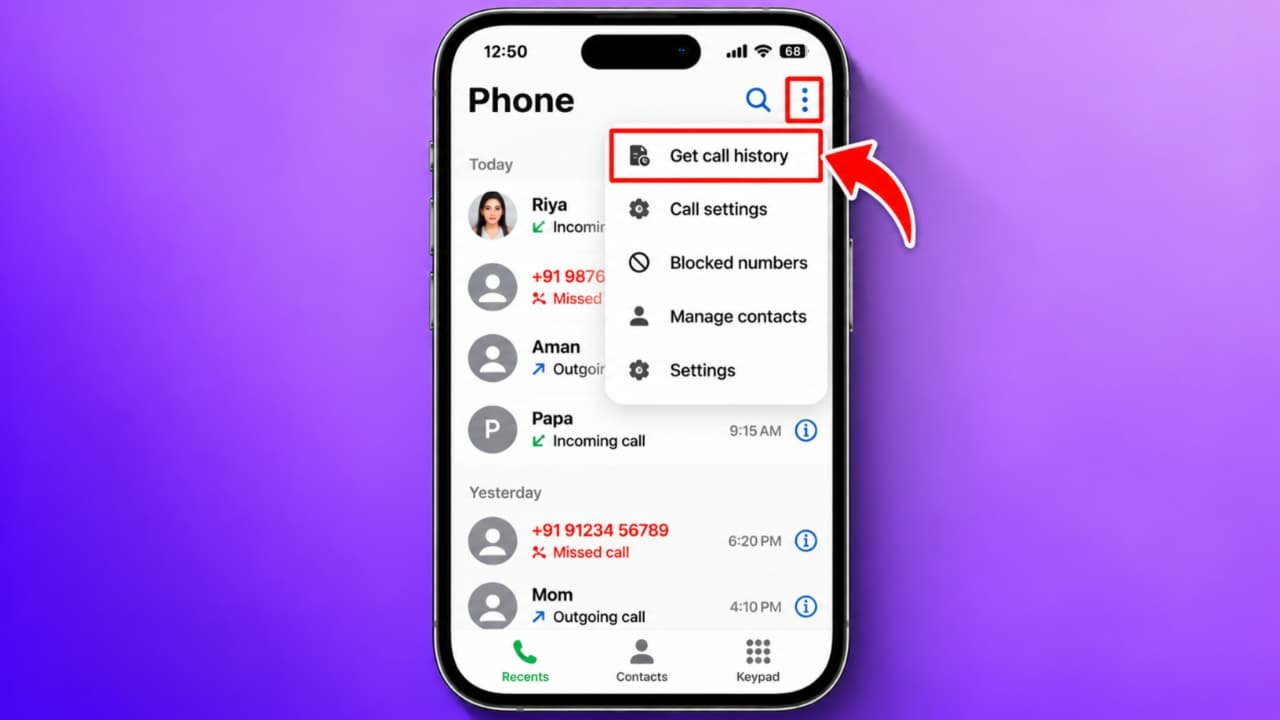
How to Get call history as pdf
If you want to get your call history as a PDF file, you can easily do it using your Android smartphone. Many people want to save their call details in PDF format so they can keep a record of incoming calls, outgoing calls, missed calls, call dates, and call durations. A PDF file is also easy to share, print, and store on your mobile phone.
In this article, we will explain how to get call history as PDF, how to save call logs, and how to convert call history into a PDF file. You can follow these methods on most Android smartphones, including Samsung, Redmi, Realme, Vivo, Oppo, and other Android devices.
What Is Call History PDF?
Call history is a record of calls made or received on your mobile phone. It generally includes the phone number or saved contact name, call date, time, call type, and sometimes call duration.When you convert your call history into PDF format, you can save this information as a document. You can access the saved PDF whenever you need it without opening your Phone app.However, remember that your phone’s call log and your mobile operator’s official call records are different. A PDF created from your phone only contains the information available in your call log.
Method 1: Save Call History as PDF Using Your Phone
The easiest method is to use your smartphone’s built-in calling application.
Follow these steps:
-
First, unlock your Android smartphone.
-
Open the Phone or Dialer application.
-
Tap on the Recents or Call History option.
-
You will see your recent incoming, outgoing, and missed calls.
-
Select the call details you want to save.
-
If your phone provides a Share or Export option, use it to export the available information.
-
If the information can be copied or shared, paste it into a document application.
-
Open Google Docs or another document editor.
-
Arrange the call details in the document.
-
Tap the three-dot menu and select Share and Export.
-
Choose Save as and select PDF Document.
-
Save the PDF file on your smartphone.
Note: Not every Android phone supports direct call history export. The available options depend on your phone manufacturer and software version.
Method 2: Convert Call Details into PDF Using Google Docs
Google Docs is another useful application for creating PDF documents.
Follow these steps:
-
Open the Google Docs application.
-
Tap the Plus (+) button.
-
Select New Document.
-
Enter a suitable document title, such as My Call History.
-
Add the call information that you want to save.
-
Organize the details using headings and a simple table.
-
Tap the three-dot menu.
-
Select Share and Export.
-
Choose Save as.
-
Select PDF Document.
-
Tap OK or Download, depending on the available option.Your call history document will now be available as a PDF file.You can find the saved document in your phone’s Downloads folder or the location selected during saving.
Method 3: Save Call History as PDF on Samsung Mobile
If you are using a Samsung smartphone, you can check whether your Phone application offers call-log sharing or exporting.
-
Open the Samsung Phone app.
-
Select the Recents tab.
-
Tap the three-dot menu.
-
Check the available call-history options.
-
Select the relevant call details.
-
If sharing is available, use it to transfer the information into a document.
-
Open the document using Samsung Notes or Google Docs.
-
Use the Export or Print option if available.
-
Select PDF as the output format.
-
Save the document.
The exact menu options may differ depending on your Samsung model and One UI version.
Method 4: Use the Print to PDF Option
Some Android phones provide a built-in Print to PDF feature.You can use it when your call details are available in an application that supports printing.
-
Open the application containing your call details.
-
Look for the Share, Print, or More option.
-
Select Print if available.
-
Open the printer selection menu.
-
Choose Save as PDF.
-
Select the page size and other available settings.
-
Tap the PDF download or save icon.
-
Choose a folder and save your file.
If the Phone app does not support printing call logs, you will need to use another supported export method.
Can We Get Old Call History as PDF?
Yes, you may be able to save older call records if they are still available in your phone’s call log or in an authorized backup.However, Android phones generally show only a limited amount of recent call history. Older records may disappear when the call log reaches its storage limit, when data is cleared, or when the phone is reset.You can also contact your mobile network operator to ask whether official call-detail records are available for your own number. Availability, record periods, and download formats depend on the operator’s policies.