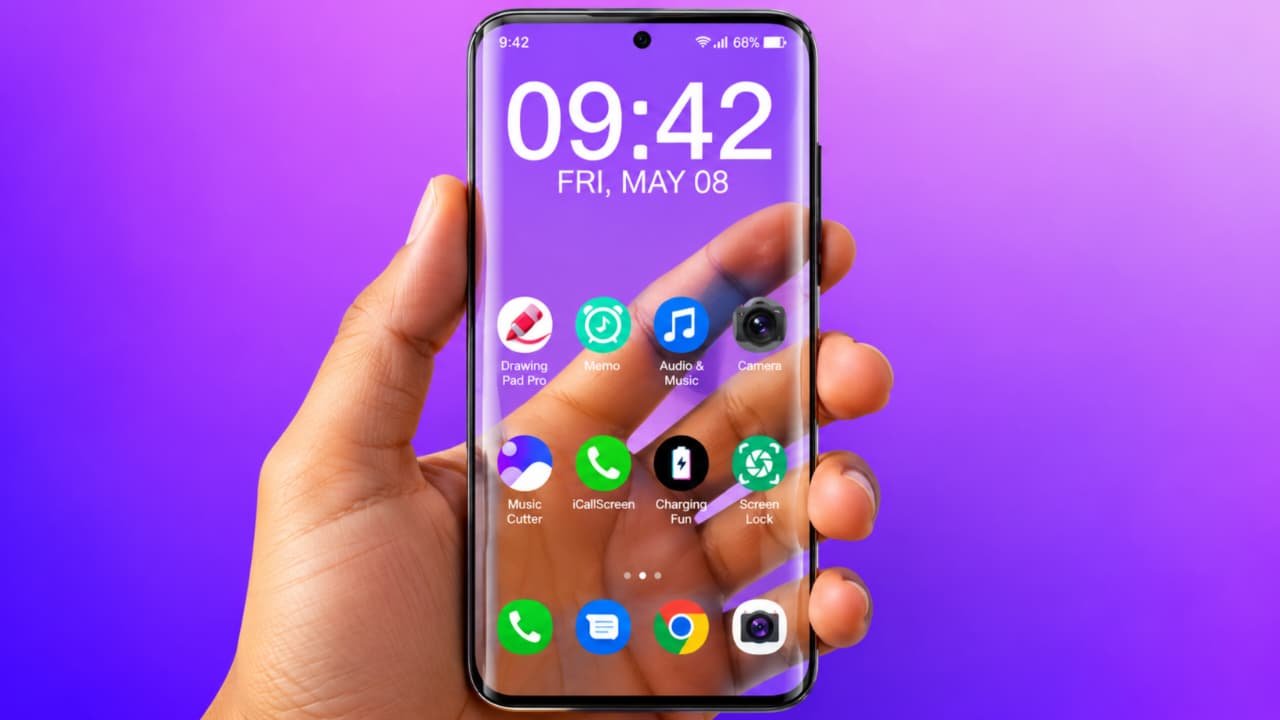
Transparent Wallpaper How to use
Do you want to make your Transparent Android mobile home screen look unique and attractive? If yes, then Transparent Wallpaper is an interesting customization option you can try. Transparent wallpaper apps allow you to create an effect that makes your phone screen appear transparent, almost like you can see through your smartphone.With the help of a transparent wallpaper application, you can give your Android phone a different look. In this article, we will explain Transparent Wallpaper How to Use, how to download the app, how to set a transparent background, and how to customize your mobile home screen.
What Is Transparent Wallpaper?
Transparent Wallpaper is a mobile customization feature that creates a see-through visual effect on your smartphone screen. Some applications use your phone’s camera to display a live camera preview as your wallpaper.For example, when you open your home screen, you may see the camera preview as the background instead of a normal picture or wallpaper.This effect makes your smartphone look different and stylish. Depending on the application, you may also find different transparency effects, live wallpapers, and customization options.Remember that the transparent effect is simulated through software. Your phone’s actual display does not become physically transparent.
How to Download Transparent Wallpaper App
First, you need to install a compatible transparent wallpaper application on your Android smartphone.
Follow these simple steps:
- Open the Google Play Store.
- Tap the search bar.
- Type Transparent Wallpaper or Transparent Screen Wallpaper.
- Check the available applications.
- Read the app description and user reviews.
- Check the developer and privacy information.
- Select a trusted application and tap Install.
- Wait until the installation is complete.
- Open the application.
Make sure you download the application from a trusted source. Avoid installing unknown APK files.
Transparent Wallpaper How to Use
After installing the application, follow these steps to apply a transparent wallpaper to your Android phone.
Step 1: Open the Application
First, open the Transparent Wallpaper app from your mobile app drawer. You will see the main interface with different wallpaper or transparency options.
Step 2: Allow Camera Permission
Some transparent wallpaper applications require camera permission to show a live camera preview.If you want to use this feature, check the permission request and allow camera access only if you trust the application and understand how it uses your camera.
Step 3: Select Transparent Wallpaper
After opening the app, look for options such as Transparent Wallpaper, Live Camera Wallpaper, or Transparent Screen.Select the effect you want to use.
Step 4: Preview the Wallpaper
Before applying the wallpaper, check the preview on your mobile screen. You can see how the transparent effect looks on your smartphone.If the application provides different settings, choose the effect you prefer.
Step 5: Set as Wallpaper
Now tap the Set Wallpaper or Apply button.Depending on your Android version, you may get options to apply the wallpaper to your home screen, lock screen, or both.Choose your preferred option.
Step 6: Enjoy Your New Wallpaper
That’s it! Your Android phone will now display the selected transparent-style wallpaper.You can return to the application whenever you want to change the effect or select another background.
How to Set Transparent Wallpaper on the Lock Screen
Some transparent wallpaper apps support lock screen customization, while others only work on the home screen.
To check this feature:
- Open the wallpaper application.
- Select your preferred transparent effect.
- Tap Set Wallpaper.
- Check whether the lock screen option is available.
- Select the desired option.
- Preview your lock screen.
If your phone does not support third-party live wallpapers on the lock screen, you may need to use the built-in wallpaper settings instead.
Features of Transparent Wallpaper App
Here are some interesting features that may be available in transparent wallpaper applications.
1. Live Camera Wallpaper: Some apps use the camera preview to create a see-through screen effect.
2. Attractive Home Screen: Give your Android home screen a different appearance with a transparent-style background.
3. Live Wallpaper Effects: Certain applications offer animated backgrounds and live visual effects.
4. Easy Customization: Select different wallpaper styles and customize your screen according to your preferences.
5. Home Screen Support: Apply supported wallpaper effects to your Android home screen.
6. Lock Screen Support: Some compatible applications also offer lock screen wallpaper customization.
Does Transparent Wallpaper Drain Battery?
Yes, some transparent wallpaper applications can consume additional battery because they continuously use the camera or run live visual effects.If you notice increased battery consumption, try using a normal static wallpaper or disable the live camera effect when it is not needed.Also, remember that camera-based wallpaper apps may generate additional heat while running.
How to Remove Transparent Wallpaper
If you want to remove the transparent wallpaper, follow these steps:
- Open your Android Settings.
- Go to Wallpaper and Style.
- Select Change Wallpaper.
- Choose your original wallpaper.
- Tap Apply or Set Wallpaper.
You can also open the transparent wallpaper application and disable its live wallpaper feature.
Is Transparent Wallpaper Safe?
Before using any transparent wallpaper application, carefully check its permissions and privacy policy. Camera access may be necessary for a live camera wallpaper, but you should avoid granting unnecessary permissions.Choose an application from a trusted developer and check recent user reviews before installing it.