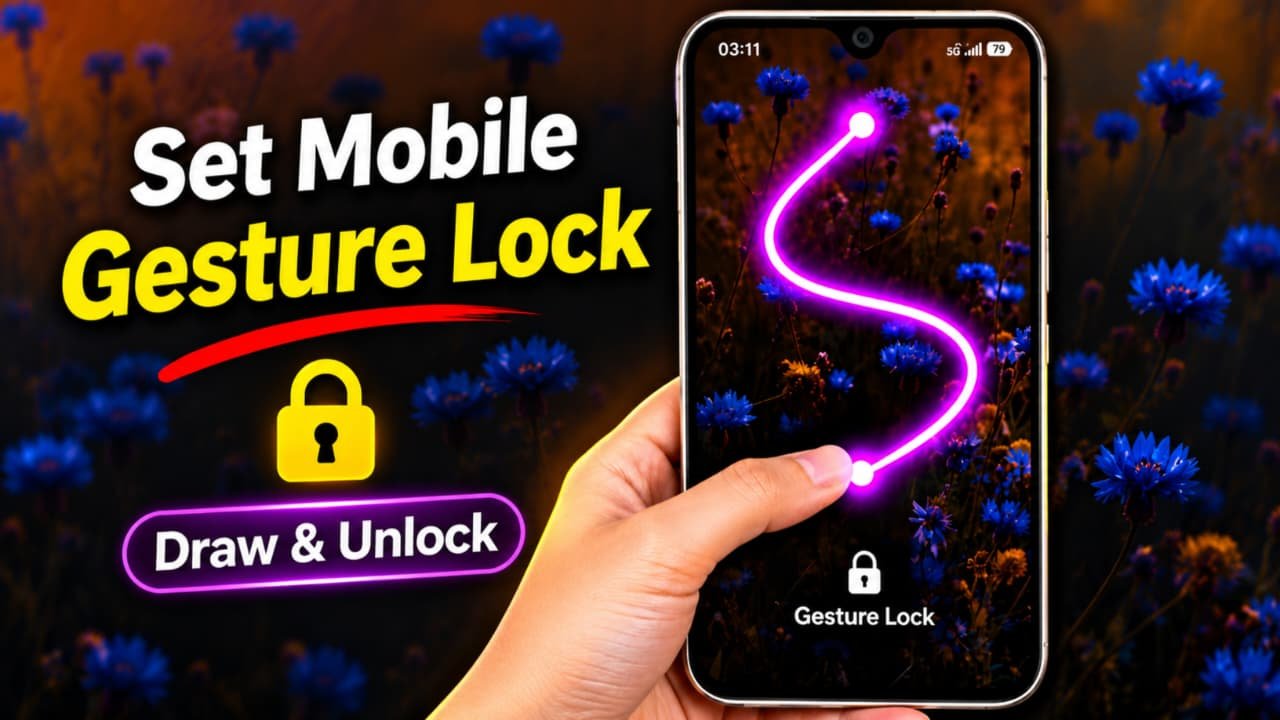
How to Use Gesture App on Android Mobile Phone
Gesture App is a useful Android application that allows users to control different phone functions using simple hand movements, screen gestures, or touch actions. Instead of navigating through multiple menus or pressing different buttons, users can perform certain actions with gestures. It can make smartphone navigation easier, faster, and more convenient.
In this article, we will explain what Gesture App is, how to install it, how to set it up, and how to use its different features on an Android smartphone.
What Is Gesture App?
Gesture App is an application designed to provide gesture-based controls on Android devices. Depending on the app, users may be able to perform actions such as going back, opening the home screen, accessing recent apps, taking screenshots, or launching selected applications through gestures.Some gesture applications support swipe gestures, while others offer floating controls or custom gesture shortcuts. The available features depend on the particular app and your Android phone.The main purpose of Gesture App is to make everyday smartphone operations more convenient. You can customize supported gestures according to your preferences.
How to Download and Install Gesture App
First, you need to install the application on your Android smartphone. Follow these simple steps:
-
Open the Google Play Store on your mobile phone.
-
Tap the search bar.
-
Type Gesture App in the search box.
-
Find the application you want to use.
-
Check its developer information, ratings, reviews, and requested permissions.
-
Tap the Install button if you have selected the correct application.
-
Wait until the installation process is complete.
-
Tap Open to launch the application.
Always check that you are installing the intended application because multiple apps may have similar names.
How to Set Up Gesture App
After installing the application, you need to complete its initial setup.
-
Open Gesture App on your smartphone.
-
Read the welcome screen and introduction.
-
Check the available gesture options.
-
Open the Settings section.
-
Select the gesture control feature you want to configure.
-
Follow the instructions displayed inside the application.
-
Enable only the permissions required for the feature you want to use.
Some applications may request Accessibility access to perform navigation actions. Before enabling it, read the permission explanation carefully and make sure you trust the developer. Accessibility access can allow an app to observe or control certain interactions with your phone.
How to Create Custom Gestures
One of the useful features of gesture applications is custom gesture creation. You can assign different actions to different shapes or letters.
Follow these steps:
-
Open the Gesture App.
-
Find the Create Gesture or Add Gesture option.
-
Tap the option to create a new gesture.
-
Draw your preferred shape or letter on the screen.
-
Select an action from the available list.
-
Choose the application or phone function you want to connect.
-
Tap Save to store your custom gesture.
-
Test the gesture to check whether it works correctly.
For example, you can create a C gesture for Camera, M for Music, or another custom shape for opening a frequently used application. The exact options depend on the app version.
How to Open Apps Using Gestures
Gesture App can make opening applications easier by allowing you to assign gestures to selected apps.
-
Open the Gesture App.
-
Select the application shortcut feature.
-
Choose an installed application.
-
Assign a gesture to that application.
-
Save your settings.
-
Open the gesture panel when required.
-
Draw your assigned gesture to launch the application.
You can use this feature for frequently used applications such as Camera, Calculator, Browser, and other supported apps.
How to Use Gesture Navigation
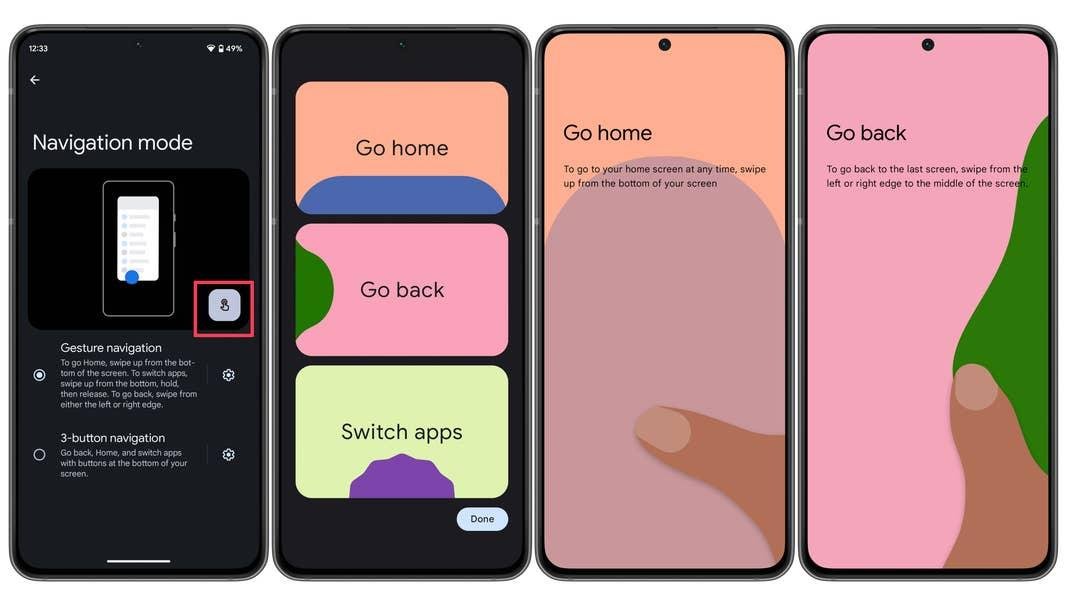
Some Android phones already include built-in gesture navigation. You may not need an additional application for basic navigation.Here are some common Android navigation gestures:
-
Go Back: Swipe inward from the left or right edge of the screen.
-
Go Home: Swipe upward from the bottom of the screen.
-
Recent Apps: Swipe upward from the bottom and hold.
-
Switch Apps: Swipe horizontally along the bottom edge.
These gestures may vary slightly depending on your Android version and smartphone manufacturer.
How to Customize Gesture Settings
You can customize the available options according to your preferences.
-
Open Gesture App.
-
Navigate to its Settings section.
-
Find Gesture Customization.
-
Select the gesture you want to change.
-
Choose a supported action.
-
Adjust sensitivity or other available settings.
-
Save your changes.
You can also disable gestures that you do not use regularly. This can help prevent accidental actions while using your smartphone.
Common Problems and Their Solutions
Sometimes Gesture App may not work properly. Here are some basic solutions.
1. Gesture Not Working
Check whether the required permissions are enabled. Also, make sure the gesture is saved correctly.
2. Floating Panel Not Showing
Check the app’s display-over-other-apps permission if the application requires it.
3. Gesture Recognition Problem
Try drawing the gesture slowly and clearly. Adjust sensitivity if the app provides that option.
4. App Stops Working in the Background
Check your phone’s battery settings and background activity restrictions.
5. Phone Becoming Slow
Disable unnecessary gesture features and close applications that you are not using.
Is Gesture App Safe to Use?
Before using any third-party gesture application, check its developer, privacy policy, ratings, and requested permissions. Some apps require camera access for hand gesture recognition, while others require Accessibility access for system actions.Do not grant unnecessary permissions. If you no longer want to use the application, you can disable its permissions or uninstall it from your phone.