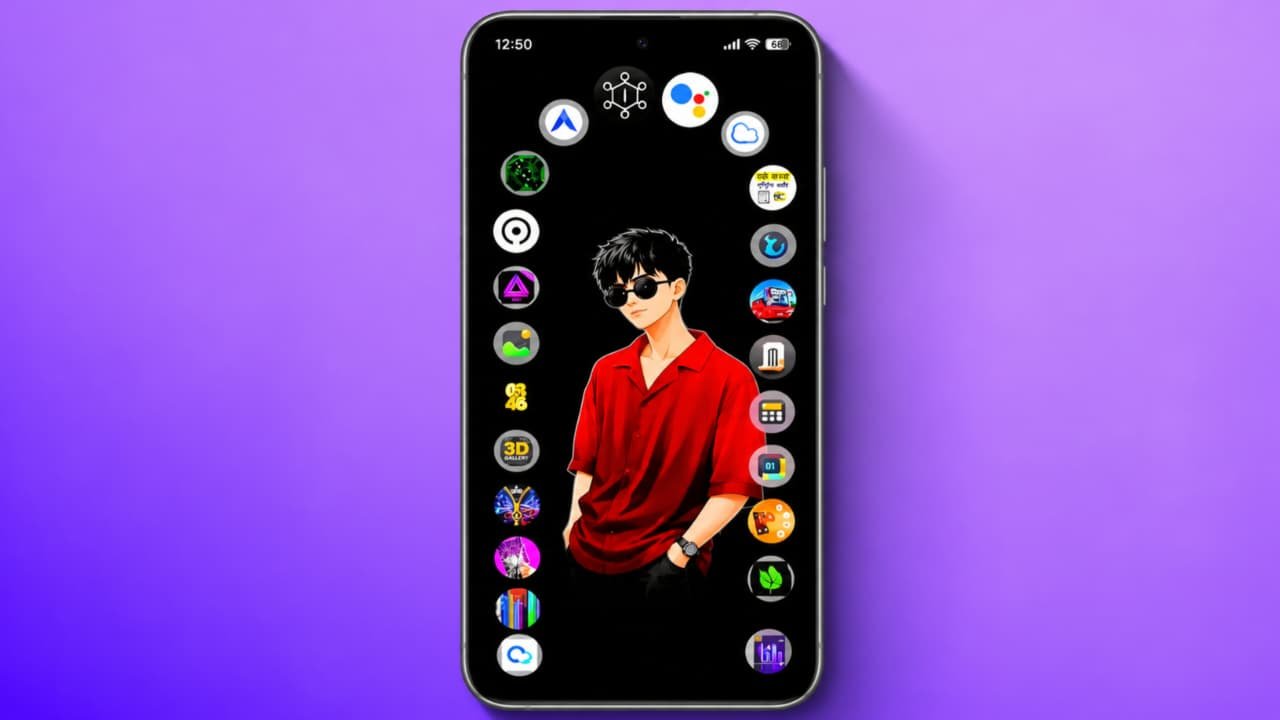
What is Radial Launcher App & How to use it
Are you bored of using the same traditional Android home screen every day? Do you want to give your smartphone a new and stylish look? If yes, Radial Launcher can be an interesting application to try. It offers a different way to organize and open applications using a circular dial instead of the traditional rows and columns of app icons.In this article, we will explain what Radial Launcher is, its features, how to download it, and how to use it on your Android smartphone.
What Is Radial Launcher App?
Radial Launcher is an Android personalization application designed to make accessing your favorite apps easier. Instead of displaying all your applications in a traditional grid layout, it uses a circular interface called a radial dial.You can select a direction on the dial, find an application, and open it using simple touch gestures.The Radial Launcher app is developed by Radial Designs. Its main purpose is to provide a cleaner home screen and make app navigation convenient, particularly when using your smartphone with one hand.It offers two main navigation styles: Letter Dial and App Wheel. Both provide different ways to find and open installed applications.
Main Features of Radial Launcher
Let’s look at some useful features of this application.
1. Circular App Launcher
The main feature of Radial Launcher is its circular app navigation system. Instead of searching through multiple home screen pages, you can use the dial to find your favorite applications.
2. Letter Dial
Letter Dial organizes applications around letters. You can move toward a particular letter to find applications starting with that letter.This makes it easier to locate apps without scrolling through a long list.
3. App Wheel
The App Wheel displays applications in a circular arrangement. You can move around the wheel to find the application you want to open.It is another convenient way to access installed applications.
4. One-Handed Navigation
Radial Launcher is designed around thumb-friendly navigation. You can adjust the dial position and size to make it comfortable to use with one hand.
5. Custom Wallpapers and Themes
You can personalize the appearance of your launcher using supported themes and wallpaper options.Depending on the version and plan, customization options may include different colors, backgrounds, and dial styles.
6. Hide Unwanted Apps
The application also provides options to hide applications that you do not want displayed in your launcher.
This helps keep your home screen organized.
7. Notification Indicators
Radial Launcher can display notification indicators for supported applications and groups, helping you notice which apps need attention.
How to Download Radial Launcher App
If you want to try Radial Launcher, follow these steps:
- First, unlock your Android smartphone.
- Open the Google Play Store.
- Tap the search bar.
- Type Radial Launcher.
- Find the application developed by Radial Designs.
- Check the developer name and application details.
- Tap the Install button.
- Wait until the installation process finishes.
- Open the application.
Always check the official Play Store listing before installing an application to make sure you have selected the correct one.
How to Set Up Radial Launcher
After installing the application, you need to complete its initial setup.
- Open Radial Launcher on your phone.
- Follow the instructions displayed on the screen.
- Allow only the permissions required for the features you want to use.
- Explore the available launcher settings.
- Select your preferred navigation style.
- Choose Letter Dial or App Wheel.
- Adjust the dial position according to your comfort.
- Select your favorite applications.
- Customize the appearance if you want.
- Follow the setup instructions to use it as your home screen launcher, if required.
The available setup options may vary depending on the application version.
How to Open Apps Using Radial Launcher
Once the setup is complete, you can start using the circular navigation system.
- Open the Radial Launcher home screen.
- Find the circular dial.
- Touch the dial and move your thumb toward the required letter or app group.
- Explore the applications displayed around the dial.
- Select the application you want.
- The selected application will open.
You can also experiment with the App Wheel to find applications using its circular layout.
After using it for some time, you may become familiar with the positions of your most-used applications.
How to Customize Radial Launcher
If you want to change the appearance of your home screen, explore the customization settings.
- Open Radial Launcher.
- Go to its Settings option.
- Find the Appearance or Personalization section.
- Explore available themes.
- Select a supported wallpaper.
- Adjust the dial size and position.
- Change available colors or styles.
- Save your preferences.
Some advanced customization options may require Radial Pro. Check the app’s current pricing and subscription information before upgrading.
Is Radial Launcher Free?
Radial Launcher offers free features, including its two main navigation styles and a basic appearance.
It also offers Radial Pro for additional customization features. According to its listing, Pro includes a seven-day trial, after which the application continues to offer its free features unless you choose to upgrade.
Always check the latest pricing and subscription terms inside Google Play before making a purchase.
Advantages of Radial Launcher
Here are some advantages of using this application:
- Provides a different circular home screen design.
- Makes accessing favorite applications convenient.
- Offers Letter Dial and App Wheel navigation.
- Supports one-handed navigation.
- Provides wallpaper and theme customization.
- Helps organize applications.
- Offers a cleaner alternative to traditional app grids.