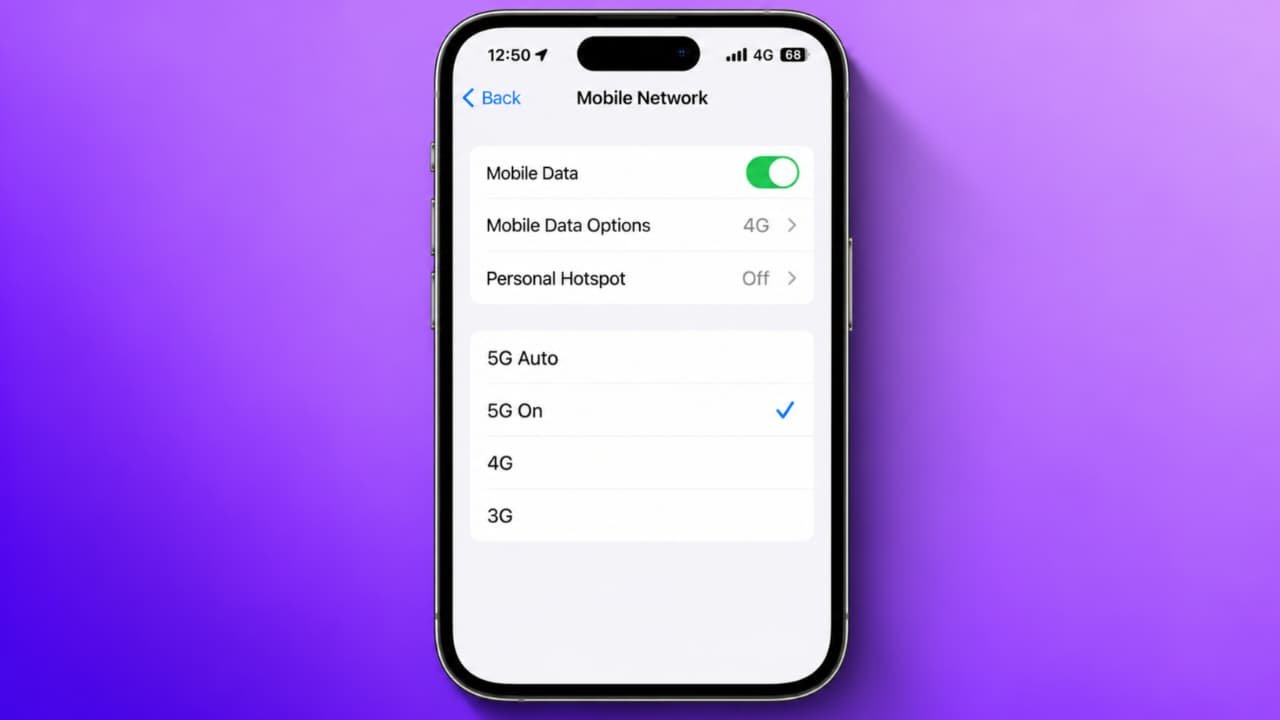
4G to 5G Mobile Setting Change | How to Convert Your 4G Network to 5G
Do you want to change your 4G mobile network settings to 5G? Many smartphone users want to enjoy faster internet speed, smoother video streaming, online gaming, and quicker downloads. If you have a 5G-supported smartphone and a compatible SIM card, you can enable 5G by changing a few settings on your mobile phone.However, one important thing to understand is that you cannot convert a hardware-limited 4G-only phone into a real 5G phone simply by changing its settings. You need a smartphone with a built-in 5G modem, a compatible SIM or mobile connection, and 5G network coverage in your area.In this article, we will explain how to change 4G to 5G mobile settings on Android phones, including Samsung, Redmi, Realme, Vivo, Oppo, and other supported devices.
1. Check Whether Your Phone Supports 5G
Before changing any settings, check whether your smartphone supports a 5G network.
Follow these steps:
- Open Settings on your mobile phone.
- Go to About Phone or About Device.
- Check your phone’s model name and model number.
- Visit the manufacturer’s official website.
- Confirm whether your specific model supports 5G connectivity.
You can also check your phone’s original box or specifications. Remember that some phone series have both 4G and 5G versions, so check the exact model.If your smartphone supports only 4G, changing network settings or installing an application will not make it a genuine 5G device.
2. How to Change 4G to 5G in Mobile Settings
If you already have a 5G-supported smartphone, follow these steps to enable the 5G network.
Step 1: Open your phone’s Settings application.
Step 2: Find Mobile Network, SIM Cards and Mobile Networks, or Connections. The option name may differ depending on your phone.
Step 3: Select the SIM card you use for mobile internet.
Step 4: Tap Preferred Network Type or Network Mode.
Step 5: Select the option that includes 5G, such as 5G/4G/3G/2G Auto.
Step 6: Return to the home screen and wait for your phone to connect to the available network.
If your operator provides 5G coverage and your phone is compatible, the 5G symbol may appear in the status bar.Do not select an unfamiliar network mode or change hidden engineering settings unnecessarily.
3. How to Enable 5G on Samsung Phones
Samsung users can usually enable 5G by following these steps:
- Open Settings.
- Select Connections.
- Tap Mobile Networks.
- Choose Network Mode.
- Select the option containing 5G, if available.
Restart your phone if the network does not connect immediately.The exact menu may vary depending on your Samsung model, software version, and mobile operator.
4. How to Enable 5G on Redmi, Realme, Vivo, and Oppo
The steps are similar on most Android smartphones, although the menu names may differ.For Redmi or Xiaomi phones, open Settings, select SIM Cards and Mobile Networks, choose your SIM, and look for the preferred network type.For Realme and Oppo phones, open Settings and look under Mobile Network or SIM Card and Mobile Data.For Vivo phones, open Settings, select Mobile Network, choose your SIM, and look for Network Mode or Preferred Network Type.Select a 5G-enabled automatic network option if your phone provides one.If the 5G option is missing, check your phone’s specifications, install official software updates, and contact your network provider if necessary.
5. Check Your SIM Card and 5G Coverage
Changing mobile settings alone does not guarantee a 5G connection. Your SIM or mobile subscription must be eligible for your operator’s 5G service, and 5G coverage must be available where you are using the phone.In India, users can check the official 5G information provided by their mobile operator, such as Jio or Airtel. Check the applicable plan requirements, coverage, and device compatibility.Also, make sure mobile data is turned on and that the correct SIM is selected for internet access.
6. What to Do If 5G Is Not Showing
If your phone supports 5G but still displays 4G, try these troubleshooting steps:
- Turn Airplane Mode on briefly and then turn it off.
- Restart your smartphone.
- Check whether 5G is selected in network settings.
- Install available official system updates.
- Confirm that 5G coverage is available in your location.
- Check your SIM and plan eligibility with your operator.
- Reset network settings if necessary, remembering that saved Wi-Fi networks and Bluetooth connections may be removed.
Avoid third-party apps that claim to convert a 4G phone into a 5G phone. These apps cannot add missing 5G hardware.
7. Benefits of Using a 5G Network
A compatible 5G connection can provide faster download speeds, lower latency, smoother high-quality video streaming, and improved performance in supported online applications. Actual speed depends on network coverage, signal strength, congestion, your device, and your operator’s service.Keep in mind that 5G does not always provide faster speeds in every location. In some areas, a strong 4G connection may perform better than a weak 5G signal.