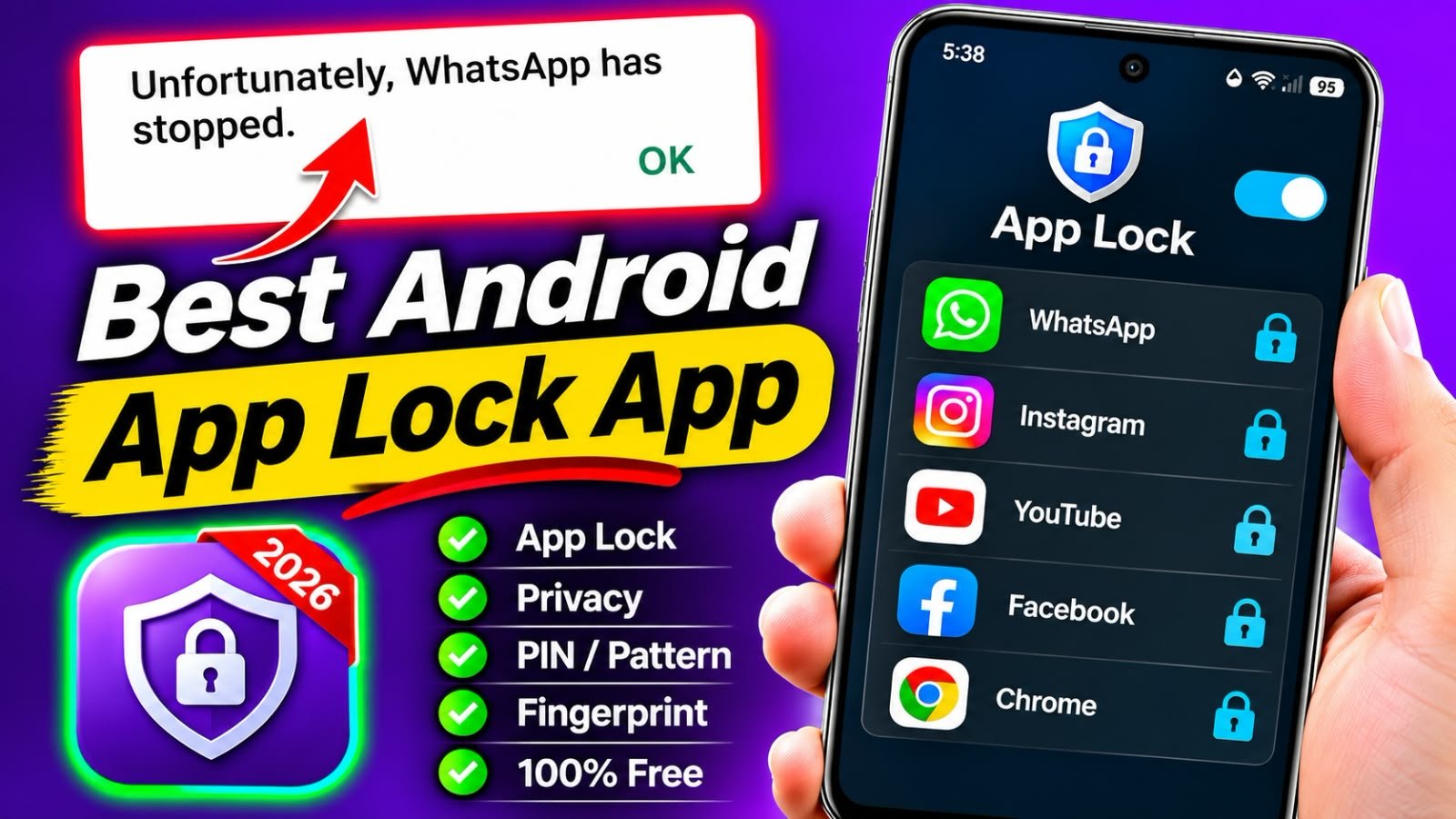
Fake AppLock – Fingerprint App
Do you want to lock your mobile applications using your fingerprint? If yes, AppLock – Fingerprint can be an interesting option for Android users who want to add an extra layer of privacy to their smartphones. With a fingerprint-based app lock, you can protect selected applications and reduce the chances of someone opening your personal apps without permission.In this article, we will explain what AppLock – Fingerprint is, its features, how to download it, and how to use it on your Android smartphone.
What Is AppLock – Fingerprint?
AppLock – Fingerprint is a type of Android security application that helps users lock selected apps with a fingerprint or other supported security methods.Many people store personal information in applications such as WhatsApp, Instagram, Facebook, Gallery, Messages, and banking apps. Sometimes, we share our smartphones with friends or family members. In this situation, an app-locking application can provide an additional layer of privacy.With fingerprint authentication, users can unlock supported applications using the fingerprint sensor available on their smartphones. Depending on the app and Android version, additional PIN or pattern options may also be available.
Main Features of AppLock – Fingerprint
Let’s explore some common features of fingerprint-based app-locking applications.
1. Fingerprint Lock
The main feature is fingerprint authentication. If your smartphone and the application support this feature, you can use your registered fingerprint to unlock protected applications.
2. App Lock Protection
You can select supported applications that you want to protect. For example, you may choose Gallery, WhatsApp, Messages, or social media applications.
3. PIN and Pattern Lock
Some app-locking applications also provide PIN or pattern protection. These options can be useful when fingerprint authentication is unavailable.
4. Privacy Protection
AppLock can help prevent other people from opening selected applications when they use your smartphone.
5. Easy-to-Use Interface
Most app-locking applications provide a simple dashboard where users can find app selection, security settings, and other available features.
6. Customization Settings
Depending on the application version, you may find options to customize the lock screen, change security preferences, and manage protected applications.
How to Download AppLock – Fingerprint
Follow these steps to find and install a suitable fingerprint app-locking application.
- Open the Google Play Store on your Android phone.
- Tap the search bar.
- Type AppLock – Fingerprint.
- Check the developer name and application details.
- Read user reviews and check the privacy information.
- If the app is available and trustworthy, tap the Install button.
- Wait for the installation to finish.
- Open the application.
Always verify the exact application before installing because different developers may publish apps with similar names.
How to Use AppLock – Fingerprint
After installing the application, follow these general steps to configure its features.
Step 1: Open the AppLock Application
First, open AppLock – Fingerprint on your Android smartphone. You may see a welcome screen with information about the application’s features.
Step 2: Complete the Initial Setup
Follow the instructions displayed on the screen. If the application asks you to create a PIN or pattern as a backup security method, configure one that you can remember.
Step 3: Enable Fingerprint Authentication
If your device and the application support fingerprint authentication, find the fingerprint option in the security settings.Follow the on-screen instructions to enable it. Your fingerprint should already be registered through your phone’s built-in security settings.
Step 4: Select Applications
Now open the app selection section. You may see a list of installed applications.Choose the applications you want to protect, such as Gallery, WhatsApp, Instagram, or Messages.
Step 5: Enable App Lock
Turn on the locking option for your selected applications. Follow any additional instructions provided by the application.
Step 6: Test Fingerprint Lock
Exit the application and open one of your selected apps. Check whether the fingerprint authentication screen appears.Use your registered fingerprint or the configured backup method to unlock the application.
Step 7: Check Security Settings
Finally, review the available settings and recovery options. Make sure you can recover access if fingerprint authentication does not work.
Benefits of Using AppLock – Fingerprint
There are several benefits of using a fingerprint-based app locker.
- Extra Privacy: Helps protect selected applications.
- Convenient Access: Fingerprint authentication can make unlocking simple.
- App Protection: You can choose which supported apps require authentication.
- Easy Management: Manage protected apps from one place.
- Backup Security: Some applications support PIN or pattern alternatives.
Important Things to Know Before Using AppLock
Before installing a third-party app locker, check its permissions, privacy policy, developer details, and user reviews.Some applications request special permissions, such as accessibility access or usage access, to monitor app activity and display their locking interface. Only grant permissions that are necessary and clearly explained.Also, third-party app lockers may not work consistently on every Android smartphone. Battery optimization, manufacturer restrictions, and Android updates can affect their performance.For important applications, use the built-in security features provided by your phone or the application itself whenever possible.