How to Get WiFi Password on Android Phone
Nowadays, WiFi is one of the most popular ways to access the internet. Almost everyone uses WiFi on their smartphone, laptop, computer, and smart TV. However, sometimes we connect our mobile phone to a WiFi network and forget its password. Later, when we want to connect another device, we need that password again.If you are also searching for how to get a WiFi password, how to find a saved WiFi password, or how to check a connected WiFi password on Android, this article will help you.In this guide, we will explain different methods to check and share WiFi passwords using Android phones and Windows computers. These methods are intended for WiFi networks that you own or have permission to access.
1. How to Get WiFi Password on Android Phone
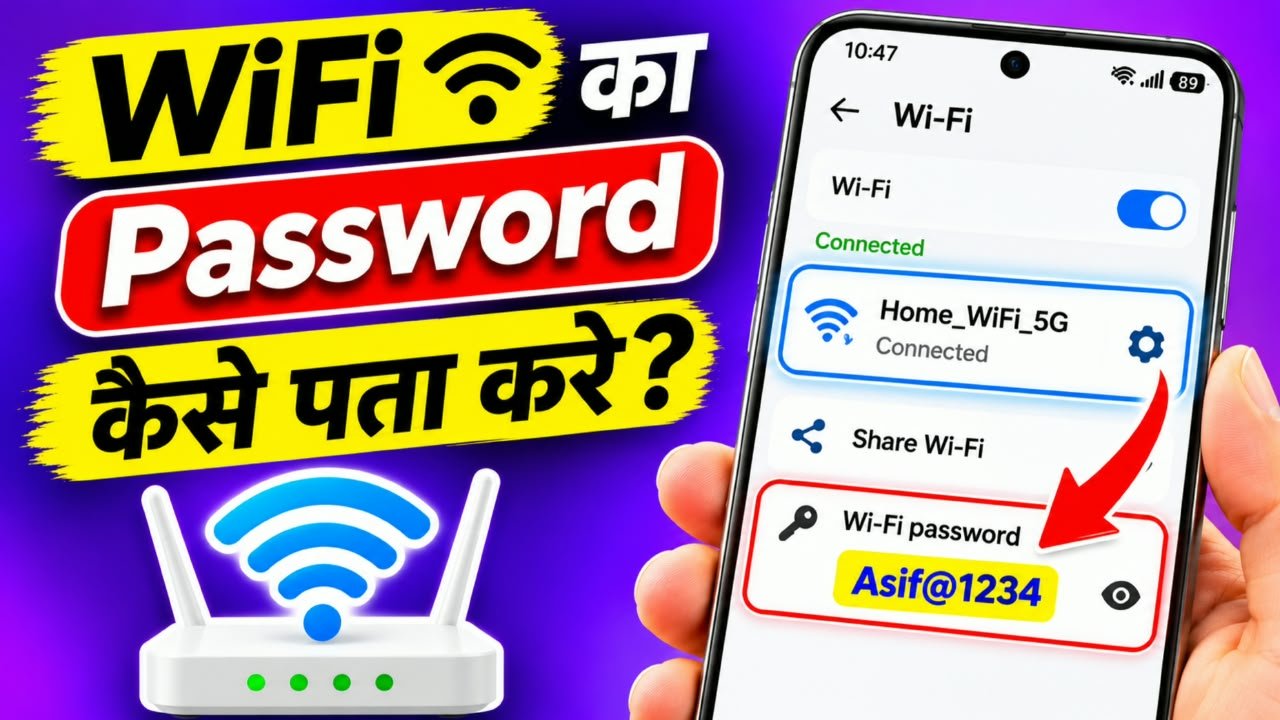
Android smartphones provide a built-in WiFi sharing feature. With this feature, you can share your connected WiFi network using a QR code.
Follow these steps:
- First, open Settings on your Android smartphone.
- Go to the WiFi or Network & Internet section.
- Find the WiFi network connected to your phone.
- Tap the connected WiFi network.
- Select the Share or QR Code option.
- Verify your identity using your screen lock PIN, password, or fingerprint.
- A WiFi QR code will appear on your screen.
On some Android smartphones, the WiFi password is displayed below the QR code. If it is not visible, you can scan the QR code using another phone to connect to the same network.This is one of the easiest methods to share your saved WiFi connection.
2. How to Find WiFi Password Using QR Code
The QR Code feature is available on many modern Android smartphones.If your phone is already connected to a WiFi network, you can generate a QR code and share it with another device.First, open your phone’s WiFi settings. Select the connected network and tap Share WiFi. Complete the security verification if required.Now, a QR code will appear on your screen.Open the camera on another smartphone and scan the QR code. If supported, the second phone will show an option to connect to the WiFi network.Some QR code scanners may also display the network information, depending on the device and application.
3. How to Check WiFi Password on Samsung Mobile
If you are using a Samsung Galaxy smartphone, you can use its WiFi QR code sharing feature.
Follow these steps:
- Open Settings.
- Select Connections.
- Tap WiFi.
- Select the settings icon beside your connected network.
- Tap the QR Code option.
- Complete verification if required.
Your Samsung phone will display a QR code for the connected WiFi network.You can scan this code using another smartphone to share the internet connection.Please note that the exact options may differ depending on your Samsung model and software version.
4. How to Get WiFi Password on Redmi, Realme, Vivo and Oppo
Many Redmi, Realme, Vivo, and Oppo smartphones also support WiFi sharing.
To use this feature, follow these general steps:
- Open your mobile Settings.
- Select WiFi.
- Tap your connected WiFi network.
- Find Share WiFi or QR Code.
- Tap the option.
- Complete screen lock verification.
- View the generated QR code.
You can scan this QR code with another device to connect to the same WiFi network.The menu names and available features may vary according to your smartphone model and Android version.
5. How to Find Saved WiFi Password on Windows Computer
If you previously connected your Windows laptop or computer to a WiFi network, you may be able to view its saved password through Windows settings.On supported Windows 11 versions, open Settings and select Network & Internet. Open WiFi settings and look for the option to view the WiFi network password.You may need to select the network and complete the required verification.Windows versions can have different menu layouts, so the exact steps may vary.
6. How to Check WiFi Password on Your Router
If you own the WiFi router, you can also check its default network information.Look at the sticker attached to the back or bottom of your router. Some routers display the default WiFi network name (SSID) and password on this sticker.If the password was changed, the printed default password may no longer work.In that situation, check your router manufacturer’s official instructions or contact your internet service provider for assistance.
7. What to Do If WiFi Password Is Not Showing?
Sometimes, your Android smartphone may display only a QR code instead of showing the password in text format.
You can try these solutions:
- Make sure your mobile is connected to the WiFi network.
- Check whether the Share WiFi option is available.
- Complete the screen lock verification.
- Update your smartphone software if an official update is available.
- Check your router label if you own the router.
- Contact the WiFi owner or network administrator if you do not know the password.
Avoid downloading unknown WiFi password recovery applications. Such apps may request unnecessary permissions or put your personal information at risk.