How to Fix Battery Draining Problem on Android Phone
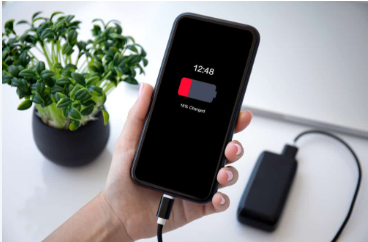
Nowadays, smartphones battery have become an important part of our daily lives. We use mobile phones for calling, watching videos, playing games, browsing the internet, and using social media applications. However, many Android users face a common problem: their mobile battery drains very quickly.Sometimes, the battery percentage decreases even when the phone is not being used. If you are also facing this problem and want to know how to fix battery draining problems on Android, this article will help you.In this guide, we will explain some useful Android settings and simple methods that can help reduce battery consumption and improve your phone’s battery backup.
1. Check Battery Usage
First, you should identify which application is consuming the most battery on your smartphone.
Follow these steps:
- Open Settings on your Android phone.
- Select the Battery option.
- Tap Battery Usage.
- Check the list of applications.
- Identify apps consuming excessive battery.
If an application is using too much battery in the background, you can restrict its background battery usage.This is one of the easiest ways to identify the reason behind fast battery draining.
2. Turn Off Background Apps
Many applications continue running background activities even when you are not using them. These activities can increase battery consumption.
To manage background applications:
- Open Settings.
- Go to Apps.
- Select an application.
- Open App Battery Usage.
- Restrict background usage if the option is available.
Repeat these steps for unnecessary applications.However, avoid restricting important applications if you need their notifications and background services.
3. Reduce Screen Brightness
Your smartphone display can consume a significant amount of battery, especially when brightness is set to maximum.To reduce battery consumption, open the Quick Settings panel and lower the screen brightness.You can also enable Adaptive Brightness so your phone automatically adjusts brightness according to surrounding light conditions.Additionally, set Screen Timeout to 15 or 30 seconds. This will automatically turn off the display when you stop using your phone.
4. Enable Battery Saver Mode
Android smartphones come with a Battery Saver feature that helps reduce power consumption.
Follow these steps:
- Open Settings.
- Select Battery.
- Find Battery Saver or Power Saving Mode.
- Turn it ON.
When Battery Saver is enabled, your phone may limit background activities, synchronization, and some visual effects.This feature is especially useful when your battery percentage is low.
5. Turn Off Location and Bluetooth
GPS Location and Bluetooth can consume battery when they are actively being used.If you are not using these features, turn them off temporarily.Open the Quick Settings panel and disable Location and Bluetooth when they are not required.You can also review app location permissions and allow access only when necessary.This helps reduce unnecessary background activity and improves privacy.
6. Uninstall Unnecessary Applications
Sometimes, unwanted applications can increase battery consumption because of background activities and notifications.To remove unnecessary apps:
- Open Settings.
- Select Apps.
- Tap See All Apps.
- Choose an application you no longer use.
- Select Uninstall.
Remove applications that you do not recognize or trust.Always download applications from the Google Play Store or other trusted sources.
7. Turn On Dark Mode
If your smartphone has an AMOLED or OLED display, Dark Mode may help reduce display power consumption.
To enable Dark Mode:
- Open Settings.
- Select Display.
- Find Dark Mode or Dark Theme.
- Turn it ON.
Dark Mode changes the appearance of supported applications and system menus.The battery-saving effect depends on your display technology, brightness, and usage.
8. Update Your Android Software
Outdated software can sometimes cause performance problems and unnecessary battery consumption.
To check for updates:
- Open Settings.
- Go to System Update or Software Update.
- Tap Check for Updates.
- Install an official update if available.
Also, update your installed applications through Google Play Store.Software updates can include bug fixes, security improvements, and battery management optimizations.
9. Avoid Excessive Phone Heating
High temperatures can affect smartphone battery performance and long-term battery health.
To keep your phone at a normal temperature:
- Avoid using heavy applications while charging.
- Do not leave your phone in direct sunlight.
- Avoid charging your phone in extremely hot environments.
- Use a compatible charger.
- Close demanding applications when they are not needed.
If your phone becomes unusually hot, stop demanding activities and allow it to cool naturally.
10. Check Battery Health
If your phone battery continues draining quickly after trying all these methods, the battery itself may be worn out.Some smartphone brands provide battery health information in their settings. You can also contact an authorized service centre to check the battery condition.If your phone suddenly shuts down, shows unusual battery percentage changes, or becomes excessively hot, get it checked by a qualified technician.Replacing an old battery with a compatible genuine battery may be necessary.