How to Stop Ads When Opening Any App on Android
Nowadays, ads are showing almost everyone uses an Android smartphone for calling, browsing, gaming, watching videos, and using social media applications. However, many users face an annoying problem when ads advertisements suddenly appear while opening any application on their mobile phones. Sometimes, ads appear on the home screen, while using apps, or even when the phone is not being used.If you are also facing this problem and want to know how to stop ads when opening any app on Android, this article is for you. Here, we will explain some useful settings that can help you identify unwanted advertisements and reduce pop-up ads on your smartphone.
1. Check Recently Installed Applications
One of the common reasons for unwanted advertisements is an application that you recently installed. Some third-party applications may display advertisements outside their own interface.
To check these applications, follow these steps:
- Open Settings on your Android phone.
- Go to the Apps section.
- Select Manage Apps or See All Apps.
- Check the recently installed applications.
- Identify any unfamiliar or suspicious application.
- Uninstall applications that you do not trust or need.
After uninstalling suspicious applications, restart your smartphone and check whether the unwanted ads have stopped.
2. Turn Off Display Over Other Apps Permission
Some applications use the Display Over Other Apps permission to show content on top of other applications. If an unfamiliar app has this permission, it may display unwanted pop-ups.To check this setting:
- Open your mobile Settings.
- Go to Apps.
- Open Special App Access.
- Select Display Over Other Apps.
- Review the applications that have permission.
- Turn off this permission for apps that do not need it.
Remember, some legitimate applications require this permission for useful features, so only change permissions for apps you do not trust.
3. Turn Off Unwanted App Notifications
Sometimes, advertisements appearing on your phone are actually promotional notifications sent by applications.You can stop these notifications by following these steps:
- Open Settings.
- Select Notifications.
- Open App Notifications.
- Find the application sending unwanted advertisements.
- Turn off its notification permission.
You can also long-press an unwanted notification and open its notification settings to disable similar alerts.
4. Turn On Private DNS to Reduce Ads
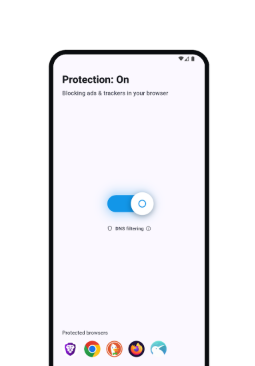
Android provides a Private DNS feature that allows users to configure a DNS provider. Some DNS services offer filtering for known advertising and tracking domains.
To check this feature:
- Open Settings on your Android phone.
- Go to Network & Internet or Connections.
- Select Private DNS.
- Choose Private DNS Provider Hostname.
- Enter a trusted DNS provider hostname if you want to use an ad-filtering service.
- Save the settings.
For example, AdGuard provides a public DNS service with an advertising-filtering option. Check the provider’s official documentation for the correct hostname and service details.Please remember that Private DNS may not block every advertisement. It also cannot remove ads built directly into an application’s content.
5. Disable Personalized Ads
Google provides advertising privacy settings that allow users to manage certain advertising preferences.
To review these settings:
- Open Settings.
- Go to Google.
- Find Ads or Ads Privacy.
- Review the available advertising controls.
- Disable options you do not want, where available.
These settings can help manage personalized advertising, but they do not guarantee that all advertisements will disappear from your phone.
6. Check Chrome Browser Pop-Up Settings
Sometimes, users think that advertisements are coming from mobile applications, but they are actually caused by unwanted website notifications or pop-ups in Chrome.
To manage these settings:
- Open Google Chrome.
- Tap the three-dot menu.
- Select Settings.
- Open Site Settings.
- Select Pop-ups and Redirects.
- Block unwanted pop-ups and redirects.
- Go back and open Notifications.
- Remove notification permission from unfamiliar websites.
This can help prevent unwanted website notifications and redirects while browsing.
7. Scan Your Phone With Google Play Protect
If advertisements continue appearing even after changing settings, check whether an unwanted application is installed on your smartphone.Google Play Protect helps scan installed applications for potentially harmful behaviour.
Follow these steps:
- Open Google Play Store.
- Tap your profile icon.
- Select Play Protect.
- Tap Scan.
- Wait for the security scan to finish.
- Follow the recommended actions if any harmful application is detected.
Always download applications from trusted sources and avoid installing unknown APK files.
8. Update Your Android Smartphone
Sometimes, unwanted behaviour can be related to outdated software or security issues.To check for updates, open Settings and go to Software Update or System Update. If an official update is available, install it after backing up your important data.Also, update your applications through Google Play Store to get the latest security improvements and bug fixes.
9. Identify Apps Using Safe Mode
If you cannot identify which application is showing unwanted advertisements, Android Safe Mode can help you troubleshoot the problem.In Safe Mode, most third-party applications are temporarily disabled. If the unwanted pop-ups stop appearing, a downloaded application may be responsible.The method to enter Safe Mode depends on your smartphone brand and model. Follow your phone manufacturer’s official instructions. Restart your phone normally to exit Safe Mode.