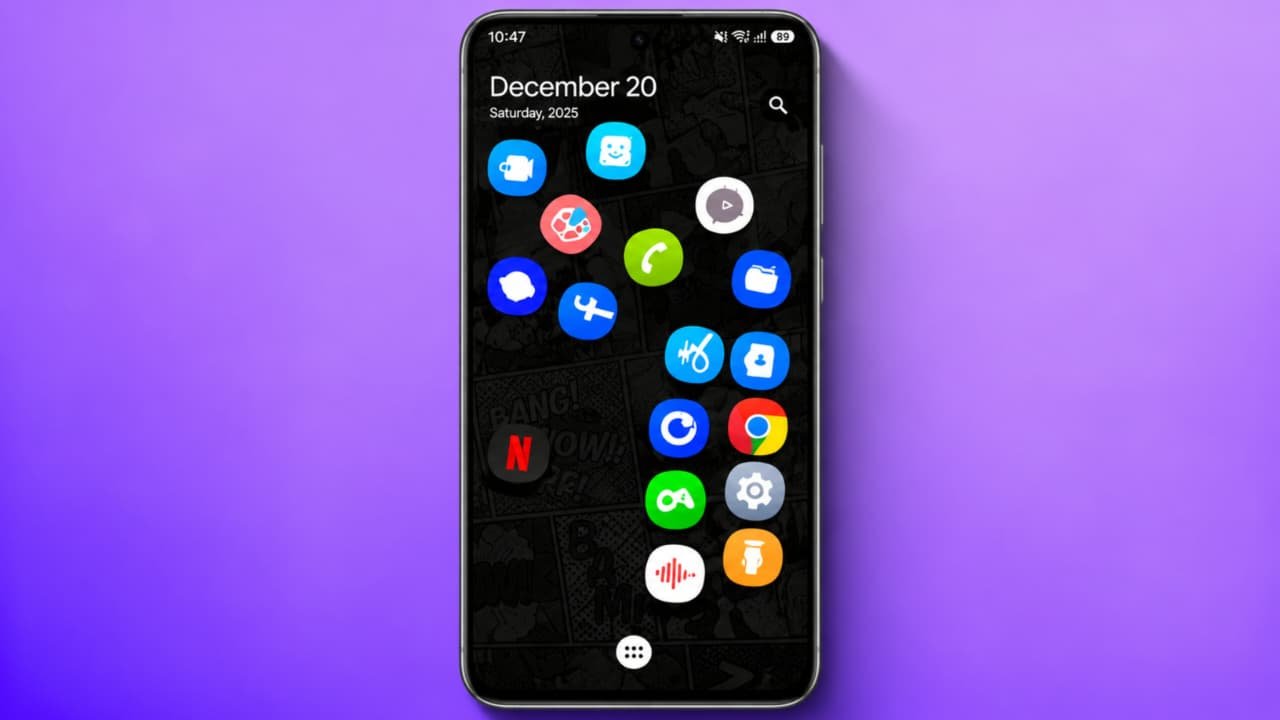
How to Use Rolling Icons App on Android
Do you want to make your Android smartphone home screen look completely different and attractive? If yes, Rolling Icons – App and Photo is an interesting customization application to try. This app allows you to create a unique home screen experience using rolling application icons, photo icons, emoji icons, and different wallpaper options.Instead of displaying your applications in a traditional grid layout, you can enjoy a different style where application icons appear in a rolling arrangement on your smartphone screen.In this article, we will explain how to download Rolling Icons – App and Photo, how to use its features, how to create custom app icons, and how to set up rolling icons on your Android mobile phone.
What Is Rolling Icons – App and Photo?
Rolling Icons – App and Photo is an Android customization application designed to change the appearance of your smartphone home screen.It provides different icon customization options that allow you to personalize your mobile screen. You can choose application icons, use your own photos, select emoji icons, and customize the wallpaper.
Some of its main options include:
- App Icon customization.
- Photo Icon creation.
- Emoji Icon customization.
- Wallpaper selection.
- Icon Clear feature.
- Settings customization.
- Start option for activating the icon experience.
These features help you create a different and personalized smartphone interface.
How to Download and Install Rolling Icons App
First, you need to install the application on your Android smartphone.
Follow these steps:
- Open Google Play Store.
- Tap the search bar.
- Search for Rolling Icons – App and Photo.
- Find the correct application.
- Check the developer details, reviews, and permissions.
- Tap the Install button.
- Wait for the installation to finish.
- Open the application.
Make sure you download the correct application because similar apps may have different features.
How to Use Rolling Icons App
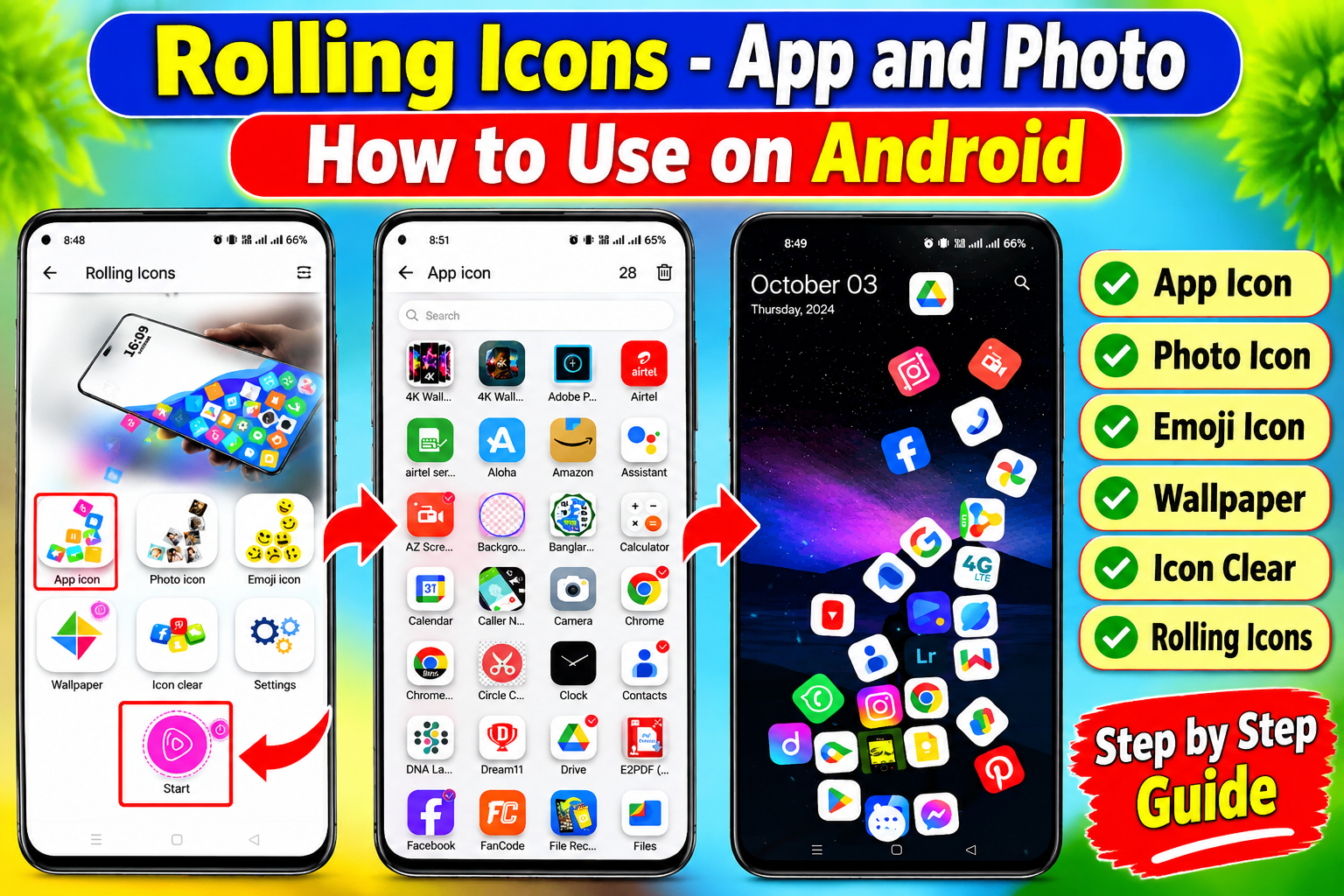
After installing the application, open it on your smartphone.On the main screen, you will find different customization options, including App Icon, Photo Icon, Emoji Icon, Wallpaper, Icon Clear, and Settings.You can select any option according to your requirements.
Follow these steps:
- Open Rolling Icons – App and Photo.
- Explore the available features.
- Select your preferred icon customization option.
- Choose the applications or images you want to use.
- Customize the appearance.
- Open the Settings section if required.
- Tap the Start button to activate the rolling icon experience, if prompted.
After completing the setup, follow the on-screen instructions to see the customized icons on your home screen.
How to Change App Icons Using Rolling Icons
One of the main features of this application is App Icon customization.You can select installed applications and use the available icon options to create a different appearance.
Follow these steps:
- Open the Rolling Icons application.
- Tap on App Icon.
- A list of installed applications will appear.
- Select your favorite applications.
- Choose the icons you want to use.
- Confirm your selection.
- Save the customization.
- Return to the main screen.
Now you can enjoy a customized app icon experience.
How to Create Photo Icons
Another interesting feature is Photo Icon. With this option, you can use your favorite pictures to personalize application icons.For example, you can select your own photo, family picture, or another image from your mobile gallery.Follow these steps:
- Open the application.
- Select Photo Icon.
- Choose an image from your gallery if prompted.
- Select the application you want to customize.
- Adjust the picture using the available editing options.
- Preview your selected photo.
- Save the changes.
Your selected photo can now be used for the supported customized icon or shortcut.
How to Use Emoji Icons
If you enjoy using emojis, this feature can make your home screen more colorful.
- Open Rolling Icons.
- Tap the Emoji Icon option.
- Explore the available emojis.
- Select your favorite emoji.
- Choose the supported application or icon.
- Save your selection.
You can experiment with different emojis to create a personalized home screen.
How to Change Wallpaper
You can also customize your smartphone background using the Wallpaper option.
Follow these instructions:
- Open Rolling Icons – App and Photo.
- Tap Wallpaper.
- Explore the available backgrounds.
- Select your favorite wallpaper.
- Preview the background.
- Tap Apply or Set Wallpaper if available.
- Select the home screen or lock screen option when supported.
Your smartphone will now have a new background.
How to Start Rolling Icons on Your Phone
After completing your customization, return to the main screen of the application.Find the Start option and tap it. Follow any instructions displayed by the application to activate its rolling icon interface.You can then check how the application icons appear and move on your smartphone screen.The final appearance and available controls may depend on your Android version and application settings.
What Is the Icon Clear Feature?
The Icon Clear option is another feature displayed on the application’s main screen. It provides an additional icon-management or customization option.Open the application, tap Icon Clear, and check the available instructions before applying any changes. Always review what the option does before confirming.
Is Rolling Icons App Safe?
Before using any third-party customization application, check its developer information, privacy policy, and requested permissions.Only allow permissions needed for the features you want to use. Be especially careful when granting access to personal photos, files, or Accessibility settings.