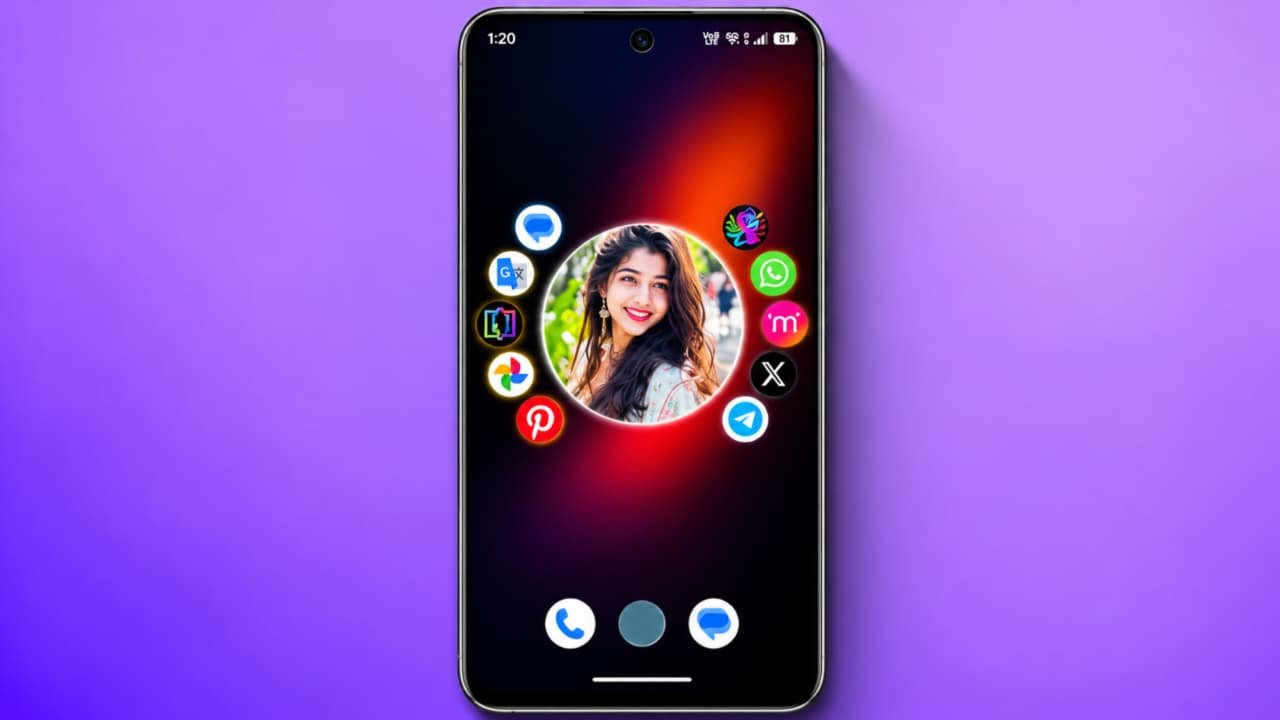
Nocebo Launcher: How to Use Nocebo Launcher on Android
Hello friends today i will tell about Nocebo laincher.If you are bored with the same traditional Android home screen and want to try something completely different, Nocebo Launcher is an interesting application to explore. It offers a unique rotating home screen, customizable app icons, widgets, folders, animations, and several personalization options.Unlike normal Android launchers that display applications in a simple grid, Nocebo Launcher uses a spinning wheel-style interface. You can move the wheel to find and open your favorite applications. It also provides different customization options to create a personalized smartphone experience.In this article, we will explain what Nocebo Launcher is, how to install it, how to set it up, and how to use its important features.
What Is Nocebo Launcher?
Nocebo Launcher is an Android home screen customization application developed to provide a different way of navigating your smartphone.Its main attraction is the rotating app spinner. Instead of using only traditional rows and columns, you can arrange applications around a circular interface and move through them using interactive animations.
Some important features include:
- Unique rotating home screen.
- Customizable center stickers.
- Drag-and-drop app organization.
- Custom application folders.
- Widget integration.
- Gesture controls.
- Custom icons and icon packs.
- Wallpaper customization.
- Adjustable spinner animations.
These features make Nocebo Launcher an interesting choice for Android customization enthusiasts.
How to Download and Install Nocebo Launcher
First, you need to install Nocebo Launcher on your Android smartphone.
Follow these steps:
- Open the Google Play Store.
- Tap the search bar.
- Search for Nocebo Launcher.
- Find the application developed by Nocebo.
- Check the application details and permissions.
- Tap the Install button.
- Wait for the installation to finish.
- Open the application.
You can also visit the official Nocebo Launcher website to learn more about the application.
How to Set Up Nocebo Launcher
After installing the application, you need to configure it.
- Open Nocebo Launcher.
- Follow the initial setup instructions.
- Select it as your default home launcher when Android asks.
- Allow the necessary permissions for the features you want to use.
- Explore the new home screen.
- Check the available customization settings.
Once the setup is complete, your smartphone will display the Nocebo Launcher home screen instead of your previous launcher.
How to Use the Spinning Home Screen
The spinning home screen is the most interesting feature of Nocebo Launcher.It displays applications around a circular wheel. You can drag, flick, or rotate the wheel to move between different applications.
To use this feature:
- Open your phone’s home screen.
- Find the circular application spinner.
- Touch and move the wheel.
- Browse through the available applications.
- Tap the application you want to open.
You can also customize the spinner’s animation behavior and movement settings. This allows you to create a home screen that feels comfortable and responsive.
How to Customize the Center Sticker
Nocebo Launcher also provides a customizable center sticker feature.You can personalize the center of the rotating interface using an image or supported sticker.
Follow these steps:
- Open Nocebo Launcher settings.
- Find the Aesthetics & Colors section.
- Look for the center sticker option.
- Select an available sticker or create a custom one.
- Choose an image from your gallery if supported.
- Adjust the appearance.
- Save your changes.
You can use a favorite picture or another suitable image to give your home screen a personal appearance.
How to Add Apps and Create Folders
Nocebo Launcher provides an app drawer where you can organize applications.
To organize your apps:
- Open the app drawer.
- Find the application you want to move.
- Touch and hold its icon.
- Drag it to your preferred position.
- Drop it into the desired location.
You can also create folders to organize similar applications together. For example, you can keep social media applications in one folder and entertainment applications in another.This makes finding installed applications easier.
How to Add Widgets in Nocebo Launcher
Widgets allow you to access useful information directly from your home screen.
Follow these steps:
- Open the Nocebo home screen.
- Long-press an empty area.
- Open the widget options.
- Select a supported widget.
- Choose the available size.
- Place it on your preferred home screen page.
Depending on your Android version and launcher settings, available widget options may differ.
How to Customize Animations and Wallpaper
Nocebo Launcher provides different visual customization options.You can explore the settings to adjust spinner animations, movement behavior, wallpaper appearance, and other interface elements.To customize animations, open App Settings and look for Main Screen or Physics & Animation. Select an available animation style and test how the spinner moves.For wallpaper customization, long-press the home screen and explore the wallpaper settings. Supported options include wallpaper blur and visual effects.You can experiment with different settings until you find an appearance that you like.
Is Nocebo Launcher Safe to Use?
Before installing any third-party launcher, always check its developer information, privacy policy, and permissions.The Google Play listing currently states that the developer declares no data collected and no data shared with third parties. Some optional features may request Accessibility or Device Administrator permissions to perform selected system actions.Only enable these permissions when you understand why they are needed and want to use the related feature.